How to Open a Work Order:
- Every call will begin with verification of the homeowner’s or resident’s name, address, and contact information, including the email address.
- The address will be looked up in SnapHOA Management. to verify that Community Care opens work orders for the association in question (“green” – yes; “red” – no; “yellow” – yes BUT pay attention to “Urgent Notices” – which are usually special work order instructions).
- Association responsibility and appropriate action to be taken will be determined by referencing the community profile. Search for key words to find all pertinent information for responsibility and vendor.
- Check to see if a work order has already been opened for the issue before opening a work order. If a work order has been opened, add the new information as an update to the existing work order.
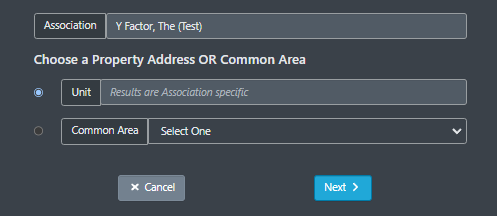
- You will need to determine if the work order should be opened under the individual unit address or under common area. When deciding, the main thing to consider is that homeowners/residents can view all the details of all work orders opened under their address on the Resident Portal, so confidentiality could be an issue. (For example, a neighbor reporting an issue may not want the owner/resident to know they reported the problem). Owners/residents cannot view details in common area work orders. Therefore, any work order which will contain names and contact information for multiple owners/residents must be opened under the common area.
- CONTACT INFORMATION SHOULD NEVER BE ADDED IN THE DETAILS SECTIONS OF A WORK ORDER.
- Work order should only be opened under the unit address under these circumstances:
Unit Work Orders should be opened for issues that only affect one unit.
All other work orders are opened under Common Area
Examples:
- Homeowner/resident calls to report that he is out of town and he has guests staying in his unit. There is a major leak in the unit and the guests do not know how to turn off the water – which is flowing out the front door and down the street. (Unit Specific: Although it can be seen from outside of the unit, it is only affecting the one unit.).
- Homeowner in a second floor unit calls to report that their is grey water backing up into their kitchen sink. (Common area: This would be a MU (Multiple Unit) work order as the units below the affected homeowner would have to be notified of the issue and put in contact with the vendor.)
- Homeowner reports to the Manager or Community Care that his front door is not closing properly. (Unit specific: Only affecting the unit)
- Homeowner calls to report that a sprinkler is hitting his next-door neighbor’s window, and he is worries it will cause water damage: (Unit specific: Even though a neighbor reported the issue, you would open it under the affected unit address.)
- Another confidentiality issue occurs when common area work order requests are received. The confidentiality of the caller must be respected. We must receive their permission to include their contact info in the work order since a 3rd party (the vendor) will see their contact information. Use the following script:
- Script: “May I include your contact information in the work order so that if the vendor we send out has additional questions or needs more information they may contact you directly?”
BEGIN OPENING A WORK ORDER (For more detailed information on opening a work order see SOP 602-Management App):
(Reference SOP#312 Leaks/Remediation, SOP#1003 Programming Requests, SOP#305 On-Call and SOP#315 Specific Work Order Issues/ After Hours Parking and Towing Issues/ After Hours IT Issues for instructions for specific types of work orders)
- Create a work order under common area or under the property address by clicking on the “Work Orders” section in SnapHOA – Management App then selecting “Create.”
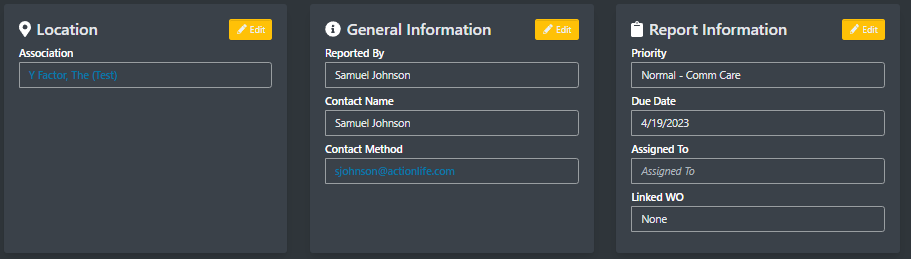
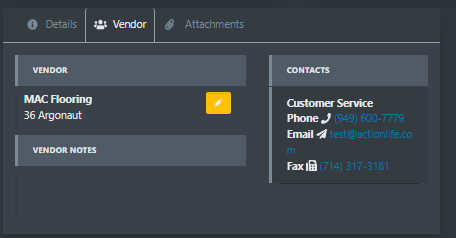
- Fill out the General Information, Report Information, and Vendor Information sections of the work order.
- For the ‘Reported by” information, the contact should always be the person who the vendor/CC needs to contact for the work order.) If access is required, the owner/resident who needs to provide access should always be listed. If you get an email forwarded from a manager that an owner emailed them about, the owner would still be listed as the contact so we can communicate updates to them as they reported it to the manager.
-
- If a vendor is not listed on the profile, it will NOT populate in the vendor section of the work order. The manager will need to be emailed asking them to please add the vendor to the profile so that Community Care could properly assign work orders to them and so we have access to their contact information.
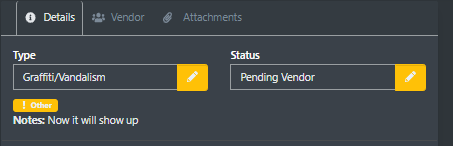
- Add a note on top of the Details section that notes who it is assigned to (or supposed to be assigned to).
- Often times the manager will copy the vendor in question. If they did fact copy the vendor on the email to us requesting a work order be opened, you may still email the work order to the vendor using the “other” section when emailing the work order. Please note you should still email the manager to add the vendor to the profile.
- If a vendor is not listed on the profile, it will NOT populate in the vendor section of the work order. The manager will need to be emailed asking them to please add the vendor to the profile so that Community Care could properly assign work orders to them and so we have access to their contact information.
- In the Description section of the work order:
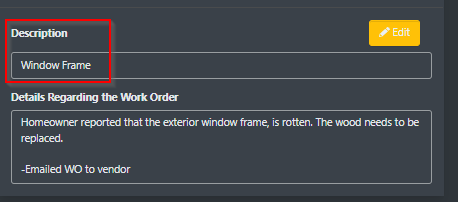
- Individual Unit: This does not need to include address. Just a simple description/location of the issue.
-
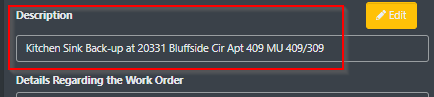
- Common area: The description has to be the address/location (otherwise it cannot be searched for on the work orders page)
- In the Details section of the work order:
- Provide details regarding the Work Order: Think of this as the “body” of an email. In this box, you are going to type in all the details for your work order. You can expand the window and make it larger by hovering your mouse over the 2 slanted lines on the bottom right corner of the text box and dragging it to make it bigger. There is a 1000-character limit. NEVER ADD FULL NAMES OR CONTACT INFORMATION IN THE DETAILS SECTION.
- WORDING THE NOTES:
- COMPLETE DETAILS. Describe the issue in such a way that the vendor will know:
- who is reporting the issue – always include names of everyone
- what you want the vendor to do – Be as detailed as possible so the reporting issue and expected action is clear. Always include all important details pertaining to the request.
- where you want the vendor to go – Location should always be clear. If not, we must obtain that before sending the work order.
- SPEAK TO THE VENDOR. You are speaking to the vendor, so the instructions should be directed to the vendor.
- Incorrect wording: “Per Manager (Lisa): Open a work order for pool vendor to clean the South pool as soon as possible.”
- Correct wording: “Per Manager (Lisa): Please clean the South pool as soon as possible.”
- INSPECT AND ADVISE. Instruct vendor to “inspect and advise” when there is any chance that the association will have to pay for the vendor’s work. Most non-emergency (and even some emergency work) requires a bid and/or board approval. Unless the profile specifies otherwise, Community Care is not authorized to approve work for which the association will be charged beyond the normal maintenance contracts.
- Example: H/O says the common area fence by their home is beginning to lean. The W/O should ask the vendor to “inspect and advise.” The vendor would go out and may recommend that the fence be replaced, or he may provide a bid for repair, or perhaps make a quick fix right then as a courtesy to the HOA. This is what it means to inspect and advise.
- If the manager emails us and says, “Have the vendor fix the fence,” the W/O does not need to say inspect and advise since the manager has authorized them to make the repair. Use the manager’s wording in the work order.
- We do not need to tell a vendor who is on a maintenance contract (such as a landscape, lighting, janitorial, pool, pest control etc.) to “inspect and advise” if we are asking them to do work that is obviously within their maintenance contract scope of work. So, for example, if a sprinkler is broken, or if the pool bathroom floor is dirty, or there are leaves in the pool, we can ask the appropriate vendor to go out and address the issue. (See below).
- DURING NORMAL MAINTENANCE. Maintenance contract vendors (landscape, lighting, janitorial, pool, pest control, etc) should always be asked to address non-emergency issues “during their normal maintenance” since they usually charge extra for special visits (which would require manager approval).
- Example: “H/O reports that the common area light to the left of his front door is out. Please address during your normal maintenance the 3rd week of the month.”
- Example: “H/O reports that all of the common area lights around her carport are out and it is very dark. This is a safety issue. Per Manager (Lisa) please go out asap. After hours rates are approved.”
- ASK FOR A BID. When you know a bid will be necessary you should ask for a bid.
-
- Example: When opening an interior repair work order after a leak, you could say, “Please schedule with resident to provide bid for interior repair due to a recent plumbing leak.”
- Attachments. – Always attach any pictures, proposals, reports, etc to the work order when provided by anyone. If what we are attaching is for the vendor or manager to view, please use the appropriate template that tells them there is an attachment and tells them how to access it.
- Attachments do not get attached to the email. They must click on the link provided when we email them to view the attachments tab where we added the attachments.
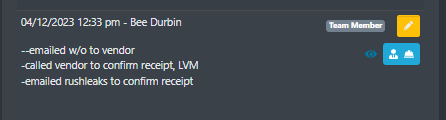
- Document that the work order was either emailed or called into the vendor.
- If there is no email address for the vendor that states it’s specifically for work orders, then you must call it in. When you do, you can confirm if they have an email so it can be added to the profile for future use.
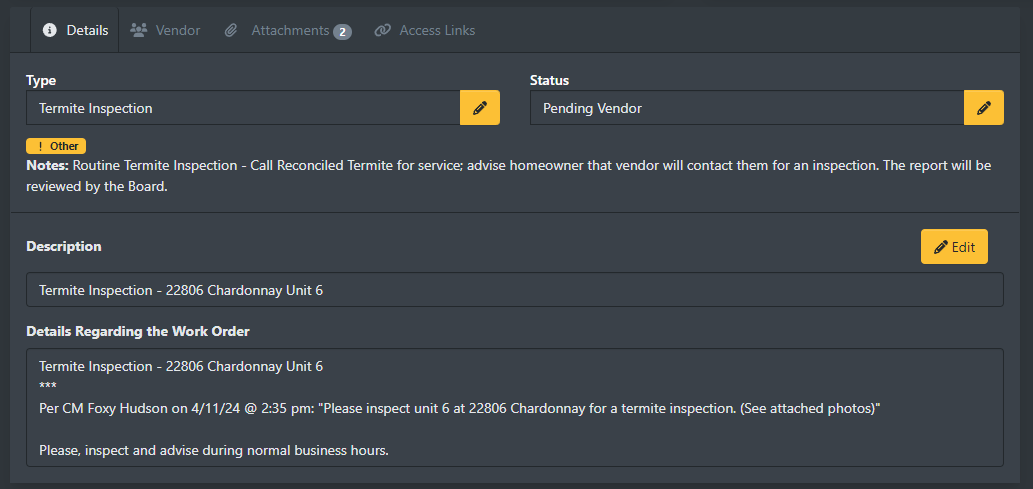
- Please note that for Rush & Rush-Leak requests, the work order must be emailed and called in to the vendor/manager to confirm receipt – document the name of who you spoke to.
- If the work order request is received via email directly from an owner/resident/tenant or reported online through the Resident Portal, the homeowner/tenant/resident should be emailed FROM THE TICKET so that they know their request has been received and the work order should be documented that you emailed them to confirm receipt of their request.