For every phone call, we verbally verify phone numbers and email addresses for all of our callers. We take additional steps to ensure that phone numbers and email addresses are officially verified through management app, as well as encouraging more of our homeowners to take advantage of the benefits of utilizing their Resident Portal
Verifying Phone Numbers and Email Addresses:
When you open up the homeowner’s Resident tab, you are viewing their phone number and email address.
If you see the green checkmark next to their phone number and/or email address, you are free to move on to the next step without any further confirmation or verification.

If you do not see the green checkmark, but instead it is blank or there is a red triangle , the homeowner has not verified their phone number or email address.

Phone Number Verification:
To verify the phone number, after confirming it is current, you need to click on the edit button :
Next, click on the toggle to turn on “text notifications”:
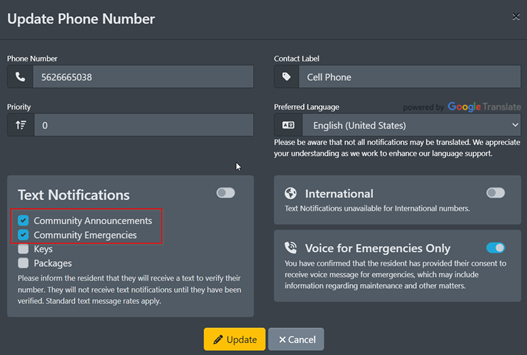
After turning on text notifications, you will now see a “Send Verification” button:
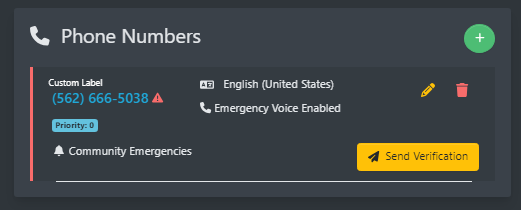
After clicking “Send Verification”, the homeowner will then receive a text prompting them to verify their phone number:
After clicking the provided link, their phone number will be verified:
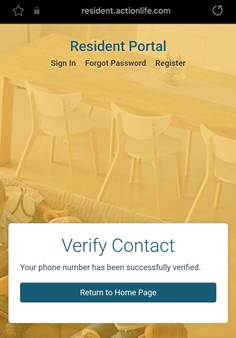
*Note: The homeowner will not receive any additional text notifications until they have been verified.
You do not need to wait for the homeowner to click the link verifying their phone number. Make sure you let them know to expect a text message, which they can respond to at their convenience. After informing the homeowner to expect a text message, move on to the next step of the call.
Email Address Verification:
To verify the email address, after confirming it is current, you will need to click the “Send verification” button.
The homeowner will then receive an email prompting them to verify their email address:
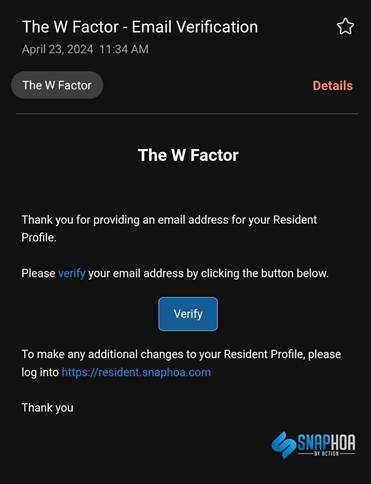
After clicking the provided “Verify” link, their email address will be verified:
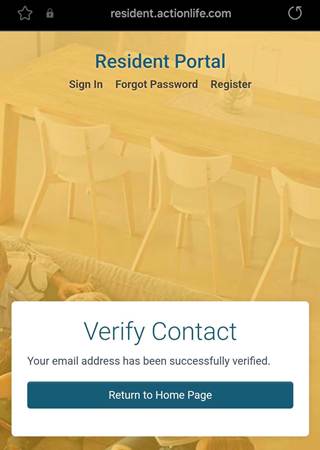
*Note: The homeowner will need to verify the email address to receive emails regarding community announcements and emergencies.
You do not need to wait for the homeowner to click the link verifying their email address. Make sure you let them know to expect an email, which they can respond to at their convenience. After informing the homeowner to expect an email, move on to the next step of the call.
Resident Portal:
Additionally, we are now going to proactively send invitations for the resident portal to our homeowners who do not have one.
If you see the homeowner has a Resident Portal account, you can proceed with your call as normal:
Tip: Try thanking the homeowner for signing up for their Resident Portal account!
If you notice that a homeowner does not have a resident portal account, you should take the necessary steps to encourage the homeowner to sign up for their account.

After confirming the homeowner’s current email address, click the “Send Invitation” button. This will send them their Resident Portal account invitation email.
*Note: The link to ‘send verification’ is no longer here because the email has been verified!
The homeowner will then receive an email prompting them to create their account:
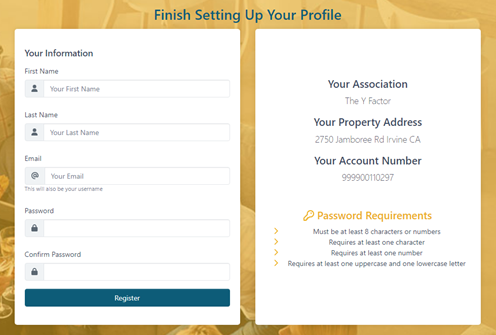
After clicking the provided “Create Account” link, they will be prompted to provide their name, email address, and a password:
You do not need to wait for the homeowner to create their resident portal account while you are in the call. Make sure you let them know to expect an email, which they can respond to at their convenience. After informing the homeowner to expect an email, unless they request assistance, move on with the call.
Scripts
To go along with our new procedures, we have new scripts to follow for verifying contact information:
When there is missing contact information:
“I see you don’t have a(n) (email and/or phone number) on your account so we can contact you in case of an emergency. Would you like us to add one to your account today?”
When the email/phone number is verified:
“Thank you for verifying your (phone number and/or email address).”
When there is an unverified phone number:
“Thank you for providing a phone number for your account. You will receive a text message requesting you verify your number, which will enable emergency alerts for the community. Please click the included link at your convenience.”
When there is an unverified email address:
“Thank you for providing an email address for your account. You will receive an email to verify the email address on file. Please click the included link at your convenience”
When the homeowner does not have a Resident Portal account:
“I see you don’t have a Resident Portal account. I have sent an email to the email address on file with a link to sign up to be able to access your Resident Portal at any time. Please click the included link at your convenience.”