How On-Call Work Orders and Calls are Handled
Community Care answers calls during the business hours of Monday through Friday, 7am-6pm. We also have an after-hours rep who are part of the Community Care team who answer calls on Saturday and Sunday, 7am-3:30pm.
When homeowners/residents call us outside of our business hours, they have two options. The first is to leave a message in our general voicemail if they feel it is not an emergency. The second is to be routed to our after hours Community Care Rep or the answering service, Central Communications, if they feel they need immediate assistance. Note that even when calls gets routed to the answering service per the caller, they will sometimes leave non-urgent messages with the answering service instead of leaving a voicemail in our general voicemail. These non-urgent calls are not dispatched to anyone and will need to be handled by Community Care the following morning. When our after hour reps are unable to answer a call during their shift, the call will be routed to our answering service. The answering service will attempt to contact our after hour reps twice within a 10 minute period before escalating to the On Call manager/escalation contacts.
The answering service emails us a report named “Call Center Messages” every morning. The email comes from dispatcher@centralcomm1.com. Everyone in Community Care receives this email individually. The Call Center Messages report lists all the calls that were received, from newest to oldest, from residents/vendors/employees/etc. from the previous day until the current day at 7am reporting an “Emergency” as well as all “non-urgent” messages to be handled when we receive the report the following morning. It is VERY important that the entire report is reviewed as the first step as there could be duplicate calls you need to grab for your work order or notes. The report contains the date and time the call came in, whether the call is an “Emergency” or a “non-urgent” message, the caller’s name, association name, the caller’s contact information, and the reason for calling. There is also a section below this call information called –Delivery Detail — and this will show who was contacted to take this call and when and often times will confirm who took the call. Sometimes it won’t say who took the call for a variety of reasons so we then need to log into the Answering Service website to obtain the information.
The answering service logs their calls on a website which we can log into to view the details of each call. Sometimes multiple contacts are called/emailed so the website helps us determine who ultimately took the call if the report we received is not clear. The website is also helpful in case we don’t get the report emailed to us do to system issues.
https://portal.centralcomm.com/portal/desktop/home.xhtml
Log in ID: 8882957437
PW: Newpassword1!
- Click on “MESSAGING” on the top right purple bar.
- Here you will see the messages the Answering Service has taken.
- You may click on “QUERY” to filter your report if you need to.
- To view additional notes from the answering service that didn’t make it on the report and to try and find out who checked in when it is not clear, click on the “i” icon for the call you are looking at. This will open up the Delivery Details and should confirm who took the call.
- To change the date and times of the report, click on the “Change Message Query” tab circled below in red.
The Community Care Work Order Specialists will review the Call Center Messages report first thing in the morning and document each call through a work order or a note under the resident’s account. After documentation, they will follow up accordingly. They all rotate this task so should a Community Care phone rep have any questions or concerns on any of the calls that were received after hours, they are to please check Management App first to see if there is a work order already opened as that means the call has been completed and we have no further information. Therefore, it is not necessary for you to transfer the call. If there is no work order opened for it yet and the Community Care phone rep is not able to handle the call for whatever reason, they are to chat the entire Community Care Work Order Specialists Team and someone will respond and/or take your call.
If you are a phone rep and you get a call regarding an issue which occurred after hours, follow this procedure:
- Check first to see if a work order has already been opened for the issue (check under the address and/or common area).
- If the work order has not been created, use the information on the Call Center Messages Report (which should be emailed to you daily) to obtain the details that were originally reported (you will use this information on the work order you create). You will need to use the On-Call Work Orders Outline Form. Find the email from the On-Call Manager/escalation contact (review the report to confirm which manager/escalation contact handled the call under the –Delivery Detail– section as well as check to see who the escalation contacts are in the Mgmt. App under the On Call tab) stating what was done after hours in CC Priority. The fastest way to do this is to go to CommunityCare and search by the name of the association your call is in regard to.
- At this point, please forward this email to every rep on the Community Care Work Order Specialist Team so they are aware you are working on this and it could be crossed off the report. If there is no email in CommunityCare, please still email the Community Care Work Order Specialist Team giving them a heads up and state that there was no email.
Call Center Messages Report – This report is a list of all the calls that got routed to the answering service for them to get a hold of either our after hours Community Care team or a manager/escalation contact. The calls on the report are listed from newest to oldest, from residents/vendors/employees/etc. from the previous day until the current day at 7am. The report will contain all “Emergency” as well as all “non-urgent” messages to be handled when we receive the report the following morning. It is VERY important that the entire report is reviewed as there could be duplicate calls and so you know what is on the report.
We must open a work order for ALL maintenance related calls that come in with the exception of RED associations. Even if the maintenance request was already handled afterhours or an owner responsibility, a work order is necessary to document what was reported afterhours and what action was taken (again, except for RED associations). For all other calls that are not maintenance related (Ex: parking issues, noise complaints, security issues, etc.), a note will be placed under the reporting person’s account with the call details. If the caller was anonymous or we are not able to locate their address to note their account, no note is necessary.
Also on this report will be non-urgent messages. Each call will be noted as “EMERGENCY”, “NON URGENT, “IT ISSUE” or “F10 CALL LOGS”.
The F10 CALL LOGS will sometimes display a little bit more information on a call on the report or it will be a call they received that was a wrong number or when someone hangs up before being helped. Very rarely will it have information we need to handle the call; however, if there is important info, you should catch this while reviewing the report.
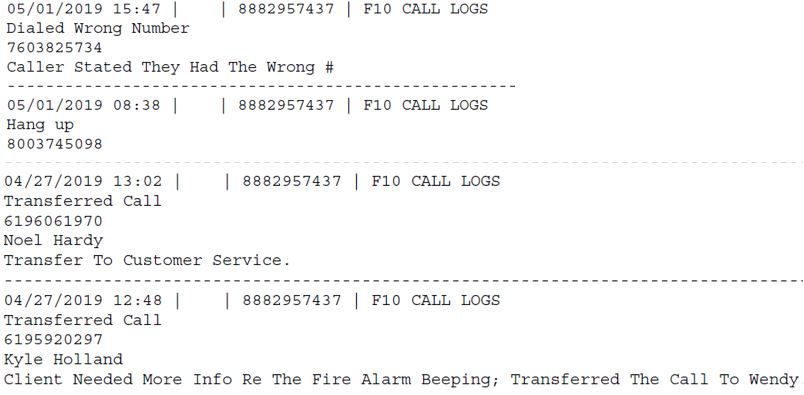
For calls labeled as NON URGENT, there will be no –Delivery Detail– section as the answering service does not dispatch the call to anyone and it is to be handled the following morning by the Work Order Specialist working on the report. The WOS must return their call and confirm receipt of their message and take necessary action.

If no immediate action is necessary per the caller and it could wait until the office opens, the answering service places the message on this report for Community Care to handle the following business day. The label of “Non Urgent” cannot be determined by the answering service. Only the caller or the On-Call Manager/escalation contact can make that determination with the approval of the caller. So to summarize, nothing gets done with these calls after hours, these calls on the report must be completed by Community Care the following business day and the call must be returned at that time.
EMERGENCY calls. When our after hours Community Care phone reps are working and they are not able to answer the initial call, it gets routed to the answering service. The answering service will attempt to contact the Community Care Rep twice within a 10 minute period via email and phone before escalating to the On Call Manager/escalation contacts for that association. If they do happen to reach our Community Care Rep, this call will still show up on our Call Center Messages report since the answering service had to answer the call. These calls could be skipped on the report as they should have already been handled and properly documented in the Mgmt. App by the Afterhours Community Care Specialist.

You will also see the following calls that are labeled IT ISSUES meant for our IT Department so you would also skip these calls on the report.

Typically most issues on the Call Center Messages Report have already been resolved after hours. However, we still need to make sure to open a work order so that the incident is documented, confirm it was completed if we have no confirmation, follow up with the person who reported the issue, and then close the work order. If the issue was not resolved and further action is required, we would just leave the work order open and follow our normal follow up process.
If the issue reported afterhours does not require a work order because it was a complaint, question or other issue we wouldn’t open a work order for, please still document the call and any action taken in the notes section in the Mgmt. App. under the resident’s address. If the caller was anonymous or we are not able to locate their address to note their account, no note is necessary.
Follow Up:
We will need to follow up with the vendor via phone call to get further details and status on the issue that was reported afterhours. We will then also follow up with all residents who reported the issue and keep them in the loop. If the vendor, manager or escalation contact happens to confirm that the issue was addressed after hours, we would still follow up with whoever reported the issue, document everything on the work order and then close it. If the work order was determined to be a homeowner responsibility and the on call manager/escalation contact advised the caller of this, there is no need for us to follow up with the caller again.
All calls that are dispatched to a manager or any other escalation contact listed for the association to handle after hours must be placed on the On-Call payroll spreadsheet in the order they are listed on the report (newest to oldest) saved in the T:Drive -> Community Care -> On-Call -> Pager Comp_ Payroll. Make sure to locate the particular date range for the correct spreadsheet. This will help upper Mgmt. determine whether a manager/escalation contact will get paid for the call they handled or not (they get paid $25.00 per incident – duplicate calls don’t qualify for pay). In order for a manager/escalation contact to qualify for pay when they take the call afterhours, they must email the information/action taken to CC Priority/afterhours@actionlife.com by 7am the following morning. If they stay up all night handling the call but do not email CC Priority/afterhours@actionlife.com, they will not qualify for the pay. The email confirms payment. If the manager/escalation contact gets called by our after hours Community Care Rep to obtain approval, direction, or need to escalate a call, we would not require an email from that manager/escalation contact and the call will also need to be placed on the spreadsheet for payment review since they were contacted after hours.
Liz Garcia reviews the On Call Payroll Spreadsheet and confirms payment for each manager and confirms all calls were listed and none were missed.
- If the On-Call Manager/escalation contact does not email CC Priority/afterhours@actionlife.com with the action taken, you must still open the work order (if it is for a Green or Yellow Association) and you will need to email and CALL (if the issue is urgent) the manager/escalation contact who took the call afterhours per the report to please advise what action was taken after hours so we know what was done and how to follow up. Even if you see they provided either an answer or direction to the answering service directly on the report instead of emailing us, we still need to email them to ask for the action taken so they are aware they need to email CommunityCare/afterhours@actionlife.com. Please always copy Liz on the email/work order you send to an on call manager requesting the action taken (there is a template we use in both the work order templates and CommunityCare email templates for when we need to email the manager/escalation contact). You would still list the call on the On-Call Payroll spreadsheet (discussed below) as “Not Paid” and note in the notes section of the spreadsheet that the manager/escalation contact did not email CommunityCare/afterhours@actionlife.com and state the date and time you emailed the manager/escalation contact for the action taken. *Really utilize the comments section of the spreadsheet to document anything important and be as detailed as possible.
- If a Manager/escalation contact didn’t respond to a call that was for a Red Association, there is no need to email them for the action taken as we wouldn’t open a work order or handle their calls. You would just need to document the call under their address in SnapHOA Management App in the notes section (if possible) and on the On-Call Payroll Spreadsheet and state whether they get paid for emailing us or not. If they did not email us, enter in the notes: Mgr did not email. RED HOA.
- If you had to open a work order for a maintenance request that a manager/escalation contact did not email us the action for, please email the manager/escalation contact from the work order using the “ON CALL: Action Taken Request” template and copy Liz. We don’t want to just forward a copy of the call without opening and sending them a copy of the work order. If no work order was required as it was not a maintenance request we would open a work order for, please send the email to the manager/escalation contact requesting the action taken from CC Priority using the “On Call” assistance (template) and copy Liz.
- You may of course be proactive and if it is obvious who the manager/escalation contact would have called out, please call that vendor and follow up with the resident who reported the issue. Don’t just leave a work order pending waiting for an email response (especially on Rush/Leak work orders). When in doubt, please ask Liz or Walter. Please still email the manager/escalation contact who should have provided us with the action taken and copy Liz, but don’t wait for their response if it is not absolutely necessary.
On Call Payroll Spreadsheet (T:Drive -> Community Care – > On-Call – >Pager Comp_ Payroll) make sure to find the correct date range of the spreadsheet:
We must list every call that is on the report that was sent to a manager or escalation contact on this spreadsheet. An escalation contact can be a building engineer, the front desk, or even a vendor. Anyone can be an escalation contact for an association and should be noted on the spreadsheet. We will be required to list the name of the manager/escalation contact who took the call, the time it was dispatched (listed both at the top of the call as well as under the –Delivery Detail–), the name of the HOA, if they get paid or not (they get paid if they email CC Priority/afterhours@actionlife.com with the action taken and they don’t if there is no email), and lastly we will enter any important notes. If we have to email the manager/escalation contact for the action taken, we will enter a note that says “Mgr/escalation contact did not email. Emailed Mgr/escalation contact on 8/9 at 7:36am”. That way we know that is the reason they are not getting paid and that we emailed them to let us know. Any other details that you need to note can be added after this note.
- The calls must be entered on the spreadsheet in the order they appear on the report (newest to oldest). All calls dispatched to a manager/escalation contact must be listed on this spreadsheet. We would not list the non-urgent calls that weren’t dispatched to a manager/escalation contact on this report (even though we still follow up on these). We also would not list any calls where our Community Care team member took from the answering service or any calls that were dispatched to IT.
- The manager/escalation contact does not get paid for duplicate calls. If multiple residents were to call regarding the same issue (like no hot water), the manager/escalation contact would only get paid for the 1st initial call and not the duplicates even though they returned their calls and emailed CommunityCare/afterhours@actionlife.com each time. If an issue was reported and resolved and homeowners have to report the issue again after it was resolved and it requires the manager/escalation contact to contact the vendor again, they would get paid and would not be listed as a duplicated call. It wouldn’t be a duplicate call if they had to act on it after it was resolved. When in doubt, please ask Liz. All duplicate calls must still be listed on the spreadsheet with a note in the comments section that says “Duplicate Call”.
- If two (2) managers/escalation contacts happen to check in, both handled the same call in someway, and they both email CommunityCare/afterhours@actionlife.com with the action taken, you would list them both on the spreadsheet. You would list the call twice, one for each manager so they both get paid.
- Also notice below if there are no calls on the report then you would list under name NO CALLS 3/13 as shown below. Make sure you are only noting this for the day before if there were no calls listed on the report or documented on the spreadsheet for that day only.

The On-Call Service (Central Communication) can be reached, when necessary, at 951 684-4361, or emailed oncall@centralcomm.com.
Email addresses for the On Call Managers for OC/IE Portfolio are:
Please note that all other escalation contact/manager contact information for example LA/SD/SF/Red associations Etc… are located in SnapHOA Management App. Go to the On-Call tab or the Association to see who is the primary manager/escalation contact assigned to the account. If you see the blue banner at the top like you see in the picture below that says On-Call Rotation, this would mean you contact the OC/IE portfolio manager that is on call for that week. You can see who is part of the on call Rotation by clicking on the calendar icon at the top of SnapHOA Management App and selecting the “On Call” calendar.
The On call managers are listed below the blue banner. If there is no blue banner on the right of the page that says the association is part of the On Call Rotation, you will need to contact the escalation contacts which are highlighted in yellow below.
You can see the manager/escalation contact who is considered to be primary and then secondary, along with their contact information they intended on using during their week of On-Call.

Below is an example of how an On-Call work order should be opened and documented.
You must first always review the entire report as there could be multiple calls received for the same issue and you want to make sure you capture and document everything on the work order you will be opening. Because of this, you must also review all the emails in CC Priority that pertain to On-Call to capture all the details and action taken by the On-Call Manager/escalation contact as well. The information normally noted must be noted for every single call on the work order (name of every caller, the time each caller reported the issue, and each caller’s message if any different). You must follow up with every person who reported the issue as well. The Re-cap report will contain calls listed as follows:
 This is the time you will enter on the work order as the time it was reported as well as on the On Call Payroll Spreadsheet.
 This is where you will see the name of association. Sometimes the homeowner won’t know or the incorrect association will be referenced so we must always verify the association by searching for the address provided (if any).

This is where you will find the caller’s name, phone number(s) and address or location of issue.

This is the message/information that was provided to our answering service.

Under the –DELIVERY DETAIL– section you will see who the answering service called and who ended up taking the call.

The answering service will email the primary On-Call manager/escalation contact and it will look like the screenshot below. The On-Call manager/escalation contact will forward the message they received from the answering service to us in CC Priority with the action taken. Please always check who the email came from as it could have been escalated to the secondary contact or another escalation contact.

If the answering service had to contact a manager or escalation contact that is not part of the On Call rotation, then typically the manager/escalation contact would just send us an email from their personal email with the action taken. These can sometimes be easy to miss in CC Priority so it’s up to us to search for an email from the manager/escalation contact the call was relayed to per the report.
See example:

Based on the report provided above and the email sent to CC Priority by the On-Call Manager, you will need to format the work order as follows:
Please see On-Call Work Orders Outline Form for more information on how to document an On-Call work order.

When the On Call Report is completed, the rep handling it must send an email to Liz stating how many calls were handled. This goes into stats for the day.