EFFECTIVE UPDATES
There are 3 ways to receive an update for a work order:
- Vendor: Contacting the assigned vendor to request an update for a work order.
- Manager: Managers should only be contacted when a work order is pending with them or it’s necessary.
- Homeowner/Resident: The reporting contact will sometimes reach out asking for status which is usually an indication that work has not been completed.
The goal of updating a work order is to get it completed and closed as soon as possible. Reading the entire work order every time to familiarize yourself with what is happening is necessary to understand what your next step is going to be. Sometimes, it’s to determine that a work order can be closed based on prior updates or based on the time that has passed, or to determine who would be the best person to contact to obtain an update or direction. Often times you may need to contact more than one person to ensure the proper steps are taking to keep the ball rolling.
STEPS THAT MUST BE TAKEN WHEN FOLLOWING UP AND/OR UPDATING A WORK ORDER
- SEARCH: The first thing you want to do is search the Work Order Updates inbox in Zendesk to ensure we don’t miss any related tickets. This will ensure we have the most current update in order to take the proper steps. Unfortunately, the work order # is not always referenced in the tickets, so when we search the Work Order update inbox, we can search a few different ways:
- By typing in the work order #
- the ticket #
- searching the address
- typing unique key words related to your work order
If you find multiple open tickets for the SAME work order, you MUST merge the tickets to avoid duplicate tickets/chains of conversation. Make sure the ticket(s) you are merging are for the same requestor.
2. VERIFY: Once you have a work order pulled up, It is extremely important to always read and review all the details of the work order such as the description, details, all updates, the priority, who it is assigned to, if it is a yellow HOA where there may be special instructions, etc. We must also read ALL of the work order notes to familiarize ourselves with the request so we can properly take the next step. This is also a great opportunity to fix/address any mistakes you may see in the work order. Think of it as giving the stamp of approval on EVERYTHING that has been noted and done prior to you touching the work order as you had to review everything. If there is a mistake, you may of course fix it and always bring it up to your supervisor (never the rep directly) so it can be further reviewed if necessary.
3. COMMUNICATION:
If you need to email a manager or a vendor, ask specific questions in order to ensure we get the specific answer and information we need to proceed. Unfortunately, managers and vendors do not always review the entire work order. You are encouraged to add on to the existing macros in Zendesk and also change the wording if necessary so that it always makes sense.
- Vendor: Always verify how we are to reach out to the vendor by checking the vendor information on the profile or by clicking on the vendor tab in the work order. There must be an email listed specifically for work orders in order for us to be able to email the work order. If there is no specific work order email, our default is to call the vendor. If you have to call the vendor, take the opportunity to ask them to provide an email where work orders and follow ups can be sent. You can then inform the Community Care Manager and Work Order Lead to have the email added to the profile for work order use. Please note: When communicating with managers, we must always provide a copy of the work order along with any other attachment like pictures, proposals, etc.
- Manager: Always check who the current manager is in management app because they will sometimes switch around. We should always reach out to the current manager regardless if another manager was involved prior. Please note: When communicating with managers, we must always provide a copy of the work order along with any other attachment like pictures, proposals, etc.
- In Zendesk: When we need to communicate with a manager whether it is for approval to send a vendor, approval on a proposal, or for direction on a request, the child ticket must be assigned/reassigned to the manager only (remove all other parties). This will ensure the auto follow ups are sent to the manager on the child ticket.
- Anytime you need to reach out to a manager regarding a ticket, you MUST check the box in the ticket called “Has Required CM Assistance” and select the reason from the drop down menu.
- Owner: Many times owners will reach out to us to follow up on their work order or even provide additional information. When an owner calls community care and we get the notification that they called to request an update, we MUST CALL the owner back to check in with them on the status of their work order. If the owner emails us for an update, we can of course email them the information and call is not required.
NOTE: Always make sure to check any special instructions for the HOA in case there are any additional steps we must follow.
Community Wide Projects:
-
- Community Care does not track any community wide projects through work orders. Often these projects take a very long time and communication regarding these projects are sent to everyone in the community by the manager. Sometimes we will have a work order opened for something and we get an update it will be done as part of a community wide project, so we close the work order and tickets at that time.
- Once we know a work order will be handled as part of a community wide project, we are to note the work order, notify the owner, and close it.
INSTRUCTIONS BASED ON WORK ORDER PRIORITY
- Normal Work Orders (Priority in Zendesk is Normal):
- Normal work order due dates are always set to 5 business days later. Another date may be set if another date is specified by either the manager or the vendor.
- Approvals for Normal work orders can be emailed to the manager. Since there is no urgency for Normal work orders, we can wait for an email response.
- We do not chat or call managers on normal work orders.
- We do not communicate any updates to homeowners/residents unless it is necessary, they request it, or we are closing the work order.
- Rush Work Orders (Priority in Zendesk is High):
- Rush work order due dates are always set to 2 business days later. Another date may be set if another date is specified by either the manager or the vendor.
- NOTE: If you use the pending chase delay feature in Zendesk to push out the follow up date, please remember to remove the date and uncheck the box once the date has passed or else auto follow ups will not occur.
- If the work order is no longer considered an emergency as the urgent part of the request was addressed, you may change the work order from a Rush to a Normal priority and we will instead follow up every 5 business days instead of every 2 business days.
- Please remember to also change the priority in Zendesk.
- Communicate any and all updates to the homeowner/resident. This includes when a proposal is received, when a proposal is approved, when a work order is reassigned, when it’s pending other work, etc. When there are multiple contacts on the work order you must contact each one to provide the update. We will will always contact everyone in the work order when closing any priority work order. Email communication is always our default method but if there is no email, then a phone call needs to be made.
- Approvals for Rush work orders will be obtained differently depending on the urgency of the matter. Urgent rush work order approvals must be obtained by chatting or calling the manager or escalating to a regional manager.
- Rush work order due dates are always set to 2 business days later. Another date may be set if another date is specified by either the manager or the vendor.
- Rush Leak/Remed. Work Orders (Priority in Zendesk is High):
- Rush Leak/Remed. work order due dates are always set to 2 business days later in Zendesk although in SnapHOA Mgmt. app it is set to the next business days so vendors can see we need an answer right away. Another date may be set if another date is specified by either the manager or the vendor.
- NOTE: If you use the pending chase delay feature in Zendesk to push out the follow up date, please remember to remove the date and uncheck the box once the date has passed or else auto follow ups will not occur.
- If the work order is no longer considered an emergency as the urgent part of the request was addressed, you must still leave the work order as a Rush Leak/Remed., but the due date can just be pushed out as needed (use judgment).
- Approvals for Rush Leak/Remed. proposals MUST be obtained at the moment received. You must chat/call the manager to obtain it and escalate as needed until direction is given. DO NOT wait for an email response. You may also email the work order to proper CC Zendesk queue to continue efforts to reach to the CM or RM.
- Anytime we follow up/update/close a Rush/Leak work order, we must ask regarding the next step to make sure remediation and interior repairs work orders get opened right away if necessary and covered by the HOA. Please note: Remediation and interior repairs work orders must be opened the address. If multiple units need remediation or interior repairs from one leak, each unit must have it’s own remediation and interior repairs work order. Please refer to SOP: 312 Handling Leaks (Liquid or Gas), Remediation, and Interior Repairs for specifics on how to properly handle Rush/Leak work orders.
- Communicate any and all updates to the homeowner/resident. This includes when a proposal is received, when a proposal is approved, when a work order is reassigned, when it’s pending other work, etc.When there are multiple contacts on the work order you must contact each one to provide the update. We will will always contact everyone in the work order when closing any priority work order. Email communication is always our default method but if there is no email, then a phone call needs to be made.
- Rush Leak/Remed. work order due dates are always set to 2 business days later in Zendesk although in SnapHOA Mgmt. app it is set to the next business days so vendors can see we need an answer right away. Another date may be set if another date is specified by either the manager or the vendor.
DUE DATES & STATUS OF A WORK ORDER
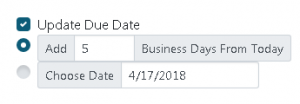
Any time we enter an update or follow up on a work order, we always want to make sure the due date gets updated accordingly. When you click on “Add Note” to enter your notes, you must check the box that says “Update Due Date”. SnapHOA Management App is pre-programmed so that it defaults to add the correct number of days based on the priority.
- Normal Priority: Adds 5 Business Days from the day you open or update a work order.
- Rush Priority: Adds 2 Business Days from the day you open or update a work order.
- Rush-Leak/Remed Priority: Adds 1 Business Days from the day you open or update a work order.
You may also chose to select a Specific Date if you were provided with a specific date such as when a manager tells us the date of the meeting something will be reviewed or when we know when the vendor is scheduled to be out. Usually for pool, lighting, and pest control work orders there is information on the profile that says when the next service date is. If it is there, please change the due date to the next business day after the scheduled service.
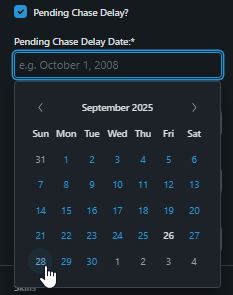
In Zendesk, you may also select a specific follow up date if you were provided with a future date of when a work order will be reviewed or addressed. You would need to check the box in the ticket called “Pending Chase Delay?” and then select the date.
- NOTE: If you use the pending chase delay feature in Zendesk to push out the follow up date, please remember to remove the date and uncheck the box once the date has passed or else auto follow ups will not occur.
There are 6 different Statuses a work order can be set to. We need to make sure the correct status is always selected when opening a work order and also when following up/updating a work order.
- Received: This is the default status it gets set to when a work order is first opened. We never want to leave it on this status as we want to be specific with who it is pending with.
- Pending Vendor: This means the work order is pending with the vendor assigned to the work order.
- Pending Resident: This means we are waiting for information or action from the resident in order to proceed.
- Pending Representative: Community Care does not use this option. This is for on-site use only.
- Pending Management: This means it is pending with a Team Member in Action such as a Manager.
- Closed: This means the work order is completed and should no longer show on our reports as pending.
There are 6 different statuses in Zendesk that tickets can be se to. We need to make sure the correct status is always selected to match the work order status.
- Open: this means a comment has been added to the ticket that requires our attention.
- Pending: this means the ticket is pending a response from the owner/resident.
- Pending Manager: this means the ticket is pending a response from a Manager.
- Pending Vendor: this means the ticket is pending a response from a vendor.
- On-Hold: this means the ticket is pending a response from a side conversation such as a side email or child ticket from the vendor or manager.
- Solved: this means the ticket has been solved and no further action is needed.
MANAGER APPROVALS FOR RUSH AND RUSH/LEAK WORK ORDERS
Community Care may chat a manager on Zoom or call them on their cell via Zendesk when we need approval on an urgent Rush or on a Rush/Leak as long as their EIO status does not show them as currently in a meeting, sick, on vacation, or on leave. Be sure to check their return time as their status may be old so you may be able to still contact them if necessary. They can still be contacted this way if their EIO status says “Home” or “Property Inspections”. Please Note: Managers should not be chatted or called on non-urgent Normal priority work orders. You would just email them asking them for approval for these non urgent requests.
- Confirm your reason for reaching out via chat/call is for an urgent matter. Such as if the matter is a property threatening emergency or life/safety issue that requires immediate action (active running water, fire, gate open, remediation, etc.).
- When you are contacting a manager for approval for something, please be sure you always have the dollar amount the vendor quoted us that needs to be approved (if applicable) and a brief description of the scope of work so it can be relayed to the manager in order for the manager to be able to approve it without having to go back and forth with the vendor and manager.
- If the Manager does not answer, a voicemail MUST be left with the following information and then you may escalated to the regional manager if necessary:
- Your name
- Association Name
- Address or Location
- Nature of issue and approval amount
- Escalating to Regional Manager
- “Hi Airica, this is Liz calling from Community Care. We have a slab leak out at 123 Leaky Lane at ABC Community. The plumber is onsite and needs approval for $_____ to address the issue and re-route the line. Since I was unable to reach you, I will escalate to your Regional Manager but wanted you to be aware.”
- If the Regional Manager is unavailable please reach out to your supervisor for further direction.
ESCALATION PROCESS FOR FOLLOW UPS
Please see SOP – 205 Scripts
Zendesk will send auto follow up emails based on the priority of the ticket. Consider the auto follow up comment added to the ticket as a step in escalation process outlined below.
Rush Leak/Remed follow up – Due date changed to the following business day
- 1st Follow Up: Call (no email) whoever it is pending with (Vendor/Mgr/Owner)
- Check with owner to see if any progress has been made and to confirm we are following up
- Roofing vendors can be emailed
- 2nd Follow Up must be done by agent: Call (no email) whoever it is pending with (Vendor/Mgr/Owner)
- 3rd+ Follow Up: Escalate to your supervisor for direction
Rush Work Order follow up – Due Date to be changed to 2 business days later.
- 1st Follow Up: Contact (email or call based on the profile instructions) whoever it is pending with (Vendor/Mgr/Owner)
- Check with owner to see if any progress has been made and to confirm we are following up
- 2nd Follow Up: Call (no email) whoever it is pending with (Vendor/Mgr/Owner)
- If truly time sensitive and it’s pending with the manager, please chat them on zoom as well as call.
- 3rd Follow Up: Call (no email) whoever it is pending with (Vendor/Mgr/Owner). If no response, escalate to your supervisor for direction on escalation.
- Check with owner to see if any progress has been made and to confirm we are following up
- 4th+ Follow Up: Escalate to your supervisor for direction
Normal Work Order follow up – Due date to be changed to 5 business days later each time
We are no longer communicating any updates to residents on Normal work orders. We are only contacting them once the work order is completed or if necessary.
- 1st Follow Up: Contact (email or call based on the profile instructions) whoever it is pending with (Vendor/Mgr/Owner)
- 2nd Follow Up: Contact (email or call based on the profile instructions) whoever it is pending with (Vendor/Mgr/Owner)
- 3rd Follow Up: Call (no email) the vendor if it is pending with the vendor. If it is pending with the manager, escalate to your supervisor for direction.
- Check with owner to see if any progress has been made and to confirm we are following up
- 4th+ Follow Up: Make judgement call if it could be closed or ask your supervisor for direction when in doubt.
ZENDESK REMINDERS
- WOU is sorted by priority & SLA. Urgent is at the top, then it’s High, then Normal. We will always work on the oldest SLA to newest.
- We don’t use the play button in this inbox.
- You are required to click on “Take it” on Urgent and High tickets in WOU. Normal priority tickets stay assigned to WOU only.
- Always ensure that all updates are on both the work order and in Zendesk.
- Always ensure every single ticket has the correct organization (HOA) selected. Remember that when you change the requestor (often times between the vendor and the manager, you must always reselect the correct organization).
- The vendor assigned to the ticket must have their name and contact information listed to match the information on the profile.
- If you use the pending chase delay feature in Zendesk to push out the follow up date, please remember to remove the date and uncheck the box once the date has passed or else auto follow ups will not occur.
BIDS AKA ESTIMATES OR PROPOSALS
After a work order has been sent and a bid is received from the vendor, Community Care will document the bid information in the work order such as the bid number, the amount, and a summary of the scope of work outlined in the bid. Then the bid is added to the attachments for the work order, and we will email the work order to the manager for review using the attachment template so they may access it and review it.
- Manager will respond to Community Care with approval or the estimated decision date (next Board Meeting or estimated date if requires Action Without a Meeting).
If it becomes necessary to obtain additional bids, the Manager must use the standard bid process and request bids through the Manager’s Assistant or obtain them themselves. Community Care will never open duplicate work orders to obtain competitive bids. If we are told additional bids are being obtained, we should note that in the work order and reassign it to “Manager” or leave it unassigned until a decision is made as far what vendor will be awarded approval.
Bid approvals:
If the Manager approves the bid:
- The Manager should reply to our Zendesk ticket with approval on any bids we have forwarded to them.
- The Work Order Specialist Team will update the work order with the approval and communicate it to the vendor by resending the work order with the approval noted. PLEASE NOTE: Even if the manager emails approval to the vendor directly, we must still send the work order with the approval to the vendor to make it official.
- Bid approvals for rush leak/remediation priority work orders require that the Work Order Specialist team call the vendor to confirm receipt of the updated work order and approval.
If a bid is denied or indefinitely tabled by the Board, the Work Order Specialists team is not able to communicate this to the homeowner/resident. The Manager will call/email the homeowner/resident to explain the Board’s decision. The Work Order Specialists team will update the work order with the Board’s decision and close the work order and tickets with no further communication.