Always check H:Drive ->Community Care-> Follow Ups to see what days are currently being followed up on.
To print report of ALL work orders due today.
Residential -> Residential Work Orders -> Query/Reporting (top right) -> Reports
- Select “Report #16 Work Order Pending Report”.

- Export the report to “Word”.
- “Ctrl – F” will bring up the find window.
- Look for “Normal – Onsite” and “Rush – Onsite” and delete them from the report.
- Will also need to delete:
- Greenbrier Terrace work orders assigned to Maintenance On-site ONLY
- Villa Balboa work orders assigned to Maintenance On-Site ONLY
- Gate Programming Work orders (GPC003)
- Look for “Work Location” to get a total number of work orders on the report.
- Save this report in the “Follow Up” folder in “Community Care” folder on the H Drive.
- [Example: 10.25 – 10.20 (###) NAME
- Will also need to delete:
To print ALL work orders due yesterday
*The only difference between this report and the report above is the date.
- Select “Report #16 Work Order Pending Report”.

- Export the report to “Word”.
- “Ctrl – F” will bring up the find window.
- Look for “Normal – Onsite” and “Rush – Onsite” and delete them from the report.
- Will also need to delete:
- Bemus (BLI001)
- CPR (CPR003)
- Protec (PBS001 & PBS002)
- J&D Services (JDS001)
- Sunrise HOA work order assigned to Manager ONLY
- Greenbrier Terrace work orders assigned to Maintenance On-site ONLY
- Villa Balboa work orders assigned to Maintenance On-Site ONLY
- Gate Programming Work orders (GPC003)
- Look for “Work Location” to get a total number of work orders on the report.
- Save this report in the “Follow Up” folder in “Community Care” folder on the H Drive.
- Will also need to delete:
[ Example: 03.21 – 03.20 (###)]
**You continue to run the above report until the furthest back follow up date. You can usually tell by looking at what that date is by looking at the oldest report saved in the Follow up folder the day before.
To run a report of ALL opened work orders that need to be followed up on up until today.
- Select “Report #16 Work Order Pending Report”.

- Export the report to “Word”.
- “Ctrl – F” will bring up the find window.
- Look for “Normal – Onsite” and “Rush – Onsite”. Make a note of both of those numbers.
- (**No need to delete them from the report as we will not print this report out**)
- Look for “Work Location” to get a total number of work orders on the report.
- Subtract both the “Normal – Onsite” and “Rush – Onsite” numbers from the “Work Location” number to get the total number of ALL work order due up until today.
- (**No need save the report as we only ran this report to obtain #’s**)
- Make note of the number to be tracked in the “Tracking – Daily – 2012” worksheet. (Located in the “Reports – Daily FOLLOW UP .2012” Folder within the “Follow Up” folder.
To run a report of ALL opened work orders that need to be followed up on up until yesterday.
*The only difference between this report and the report above is the date.
- Select “Report #16 Work Order Pending Report”
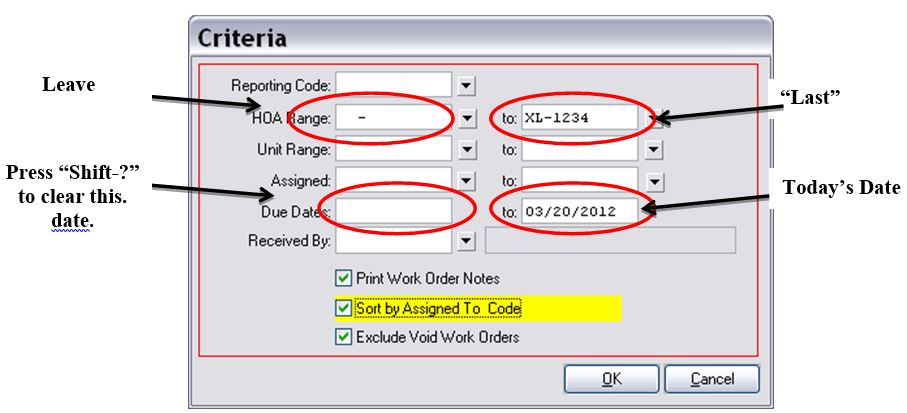
- Export the report to “Word”.
- “Ctrl – F” will bring up the find window.
- Look for “Normal – Onsite” and “Rush – Onsite”. Make a note of both of those numbers.
- (**No need to delete them from the report as we will not print this report out**)
- Look for “Work Location” to get a total number of work orders on the report.
- Subtract both the “Normal – Onsite” and “Rush – Onsite” numbers from the “Work Location” number to get the total number of ALL work order due up until yesterday.
- (**No need save the report as we only ran this report to obtain #’s**)
- Make note of the number to be tracked in the “Tracking – Daily – 2012” worksheet. (Located in the “Reports – Daily FOLLOW UP .2012” Folder within the “Follow Up” folder.
To run a report for ALL work orders opened the previous day.
- Select “Report #2 Work Order Summary Report”.

- Export the report to “Excel”.
- Scroll to the bottom of the report and make note of the Excel line # with the last work order number in the column next to it.
- Divide that number by 4.
- Make note of the number to be tracked in the “Tracking – Daily – 2012” worksheet. (Located in the “Reports – Daily FOLLOW UP .2012” Folder within the “Follow Up” folder.
To input the report #’s we noted from the last 3 reports.
“Tracking – Daily – 2012” worksheet. (Located in the “Reports – Daily FOLLOW UP .2012” Folder within the “Follow Up” folder.

- Enter the 1st # we made a note of in today’s date as ALL work orders that need to be followed up on up until today.
- Enter the 2nd # we made a note of in yesterday’s date to the left of the box as the # of work orders that need to be followed up on up until yesterday.
- Enter the 3rd # we made a note of in yesterday’s date to the right of the box as ALL work orders that were opened that day.
- Save the changes.
And you are done with all Jenark Follow Up Reports. J