RECEPTION LOG – Microsoft Edge
http://home.actionlife.com/departments/communitycare/Reception/SitePages/Reception%20Home.aspx (This should be set as a home page on Microsoft Edge.)
Escrow, Community Care, Assistants and a few Managers have access to log items themselves before delivering to Receptionist however the Receptionist can log ALL items.
All items left at the front desk for pick up or that are dropped off (No matter for who), needs to be logged into the package log.
INCOMING MAIL / PACKAGES
All mail/packages that are held at the Receptionist desk, must be logged in and date stamped. Organize all mail until you are able to deliver them. If it is a large box/package, just leave them all to the side on the floor by the door and someone from the Production Room will stop by to pick them up and deliver them.
To enter a new item, scroll to the Incoming Packages Column and select “Add New Item”.

The below screen will appear in which all fields applicable should be filled in. Make sure to be as descriptive as possible in the notes. You would not check the “Picked up” box until after you have delivered it (with an exception of Escrow and Cash Posting entries since you are placing these items in the folder for pick up at the front desk).

After delivering the mail to its intended recipient, you will need to go back into each entry and note your intitials and exactly where it has been delivered to. For example, if you have delivered a letter for an employee, please note if it was hand delivered to their desk, to their mail folder in CPS, etc. Once you have notes what you did with it, you can now mark it as “Picked up” to clear it from the log.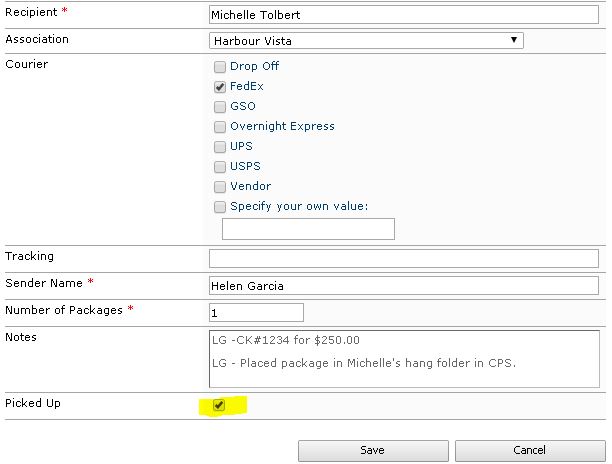
- Escrow Documents:
- Enter your initials, the Check #, the amount of the check, and if it’s an Order or a Closing in the Notes section.
- Date stamp the back of the check and the front of the check stub.
- Please reference the following SOP for detailed instructions on how to scan and handle all Escrow requests https://wp.actionlife.com/sopcommunitycare/2018/01/12/704-deliveries/
OUTGOING MAIL / PACKAGES
All mail/packages that are going to be picked up from the Receptionist desk, must be logged in (including keys that are left by the manager for someone to pick them up).
To enter a new item, go to the Items to be Picked up Column and select “Add New Item”.

The below screen will appear in which ALL FIELDS applicable should be filled in. Make sure the due date is a week later if you are not sure when it will be picked up and that you fill out the package description as well as be specific in the notes.
Make sure to NOT check the “picked up” box for ALL outgoing packages until the intended recipient has picked it up. You will enter your initials and who picked it up before marking as picked up.
***IF A PACKAGE HAS BEEN UP THERE FOR 2 WEEKS AND IT HAS NOT BEEN PICKED UP, PLEASE EMAIL WHOEVER REQUESTED THE PICK UP TO LET THEM KNOW IT IS STILL SITTING UP AT THE FRONT DESK***

ITEMS BEING PICKED UP
Once the representative comes to obtain the package(s), left click on the correct items name and click “Edit Item”,
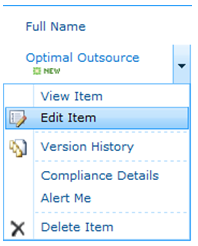
Enter the recipients first name in the “Notes” section along with your initials and select the “Picked Up” box. Select “SAVE” to close.