To create an open work order report for a specific association, the following procedure should be followed. Managers should generate these reports themselves and this SOP can be forwarded to any manager who wants to know how to generate this report:
Report #16 – Work Order Pending Report (This report is for OPEN w/o’s ONLY)
- RW -> Reports -> Reports
- Select the #16 report called: Work Order Pending Report.
- The following window will come up in which you will only need to fill out the following:
- HOA Range: This is where you will select the HOA you want to run the report for. You will list the same HOA under both sections as circled below in red (This example shows I am running a report for Foothill Townhomes).
- Assigned: If the manager wants a report for a specific vendor, then please fill this area out and select the vendor in both the “from” and “to” section as circled in Blue below. If the report is not for a specific vendor, then please leave this section blank.
- Due Dates: This is where you will enter the date range the manager wants the report for. If the manager wants ALL pending work orders, then you would list the dates like in the picture below (01/01/1111 to 12/31/9999) to ensure we capture all pending work orders.
- Lastly, you have to ensure all 3 boxes are checked for Print Work Order Notes, Sort by Assigned To Code, and Exclude Void Work Orders.

- The report will then come up and you will be able to email it or print it from here.
When a manager requests a work order history report which will include closed work orders, the following report is what needs to be generated:
Report #01 – Work Order Detail Report This report is for OPEN & CLOSED w/o’s)
- RW -> Reports -> Reports
- Select the #01 report called: Work Order Detail Report.
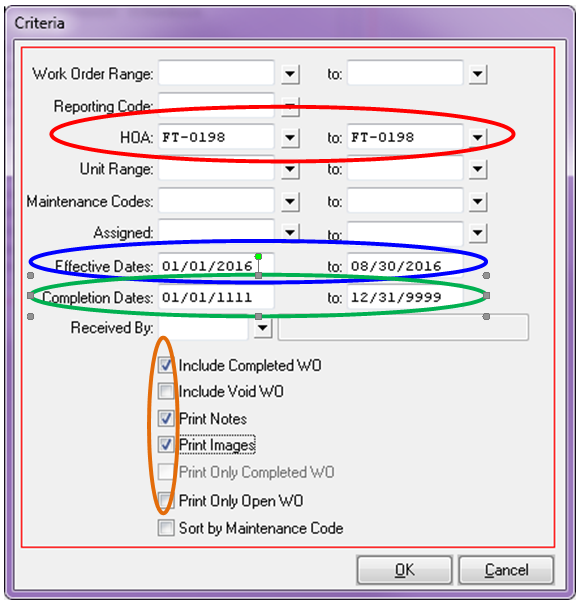
- The following window will come up in which you will only need to fill out the following:
- HOA Range: This is where you will select the HOA you want to run the report for. You will list the same HOA under both sections as circled below in red (This example shows I am running a report for Foothill Townhomes).
- Effective Dates: This is where you will enter the date range the manager wants the report for. The example in the picture below shows me running a report for this year so from 01/01/2016 to 08/30/2016. Managers usually want a report for this year to date but you can put whatever date range they want in this section.
- Completion Dates: The Completion Dates are when a work order was closed. In order to capture everything for the specified time frame you filled out for the Effective Dates, you will need to set the Completion Dates to: 01/01/1111 to 12/31/9999 as circled in green below.
- Lastly, you have to ensure the following 3 boxes are checked: Include Completed W/O, Print Notes, and Print Images .
- The report will then come up and you will be able to email it or print it from here.