The 3CX phone system manages call distribution, and tracks statistics such as call volume (inbound/outbound), abandon rates, wait time, agent log in stats, etc.
- SET UP
- TRANSFERRING
- WARM TRANSFERRING
- VIEWING CALL HISTORY
- INSTRUCTIONS FOR SETTING UP YOUR VIEW OF CC PHONE REP STATUS ON YOUR SOFT PHONE
- CONFERENCE CALLING
- 3CX WEB MEETINGS (For Trainings)
SET UP
- Your “Soft Phone” on your computer displays your current status (“Available,” or “Do Not Disturb”).
- When you are unavailable to take calls, whether at your desk (handling an urgent issue), in a meeting, using the restroom, at home, on vacation, etc., you must log out of the queue. Click on the “Q” so it is light gray and also change you status to “Do Not Disturb.” Please do not use the “Home,” or “Away” status. When you are available to take calls again, change your status to “Available” and log back into the Queue.


- When you are unavailable to take calls, whether at your desk (handling an urgent issue), in a meeting, using the restroom, at home, on vacation, etc., you must log out of the queue. Click on the “Q” so it is light gray and also change you status to “Do Not Disturb.” Please do not use the “Home,” or “Away” status. When you are available to take calls again, change your status to “Available” and log back into the Queue.
- Enabling the “Focus” feature
- The “Focus” feature on the soft phone will make the soft phone window pop up on top of all other windows when a call comes in. You will also be able to answer a call by pressing “Enter” when “Focus” is enabled.
- To set up the feature, click on the gears icon in the lower right-hand corner of your soft phone screen, then click “Advanced Settings,” then “Behavior.” The first item in the “Behavior” menu will be “Focus.” Click the box so that there is a light blue square inside to enable the “Focus” feature.

- Community Care Specialists monitor the call queue constantly throughout the day to ensure calls are answered as quickly as possible. “Status of Community Care call reps” can be displayed on your computer for your convenience. See instructions at the bottom of this SOP***.

- Before leaving the department, please check the status of your teammates. See SOP 216 (Logging Off of the Phones to Step Away) for further information.
- Call volume varies from day to day and also fluctuates throughout the day. It is critical that Community Care Specialists work together as a team to coordinate logging out for breaks, lunch periods, or otherwise leaving the department. Although each CC Rep has a scheduled time for lunch and breaks, occasionally unforeseen circumstances prevent reps from leaving the department on time. If you notice that the schedule must be altered significantly, please bring it to the attention of the Community Care Lead.
TRANSFERRING CALLS

In Community Care, we use two methods of transferring: the cold transfer and the warm transfer. Both methods are accessible from the soft phone.
- To COLD TRANSFER:
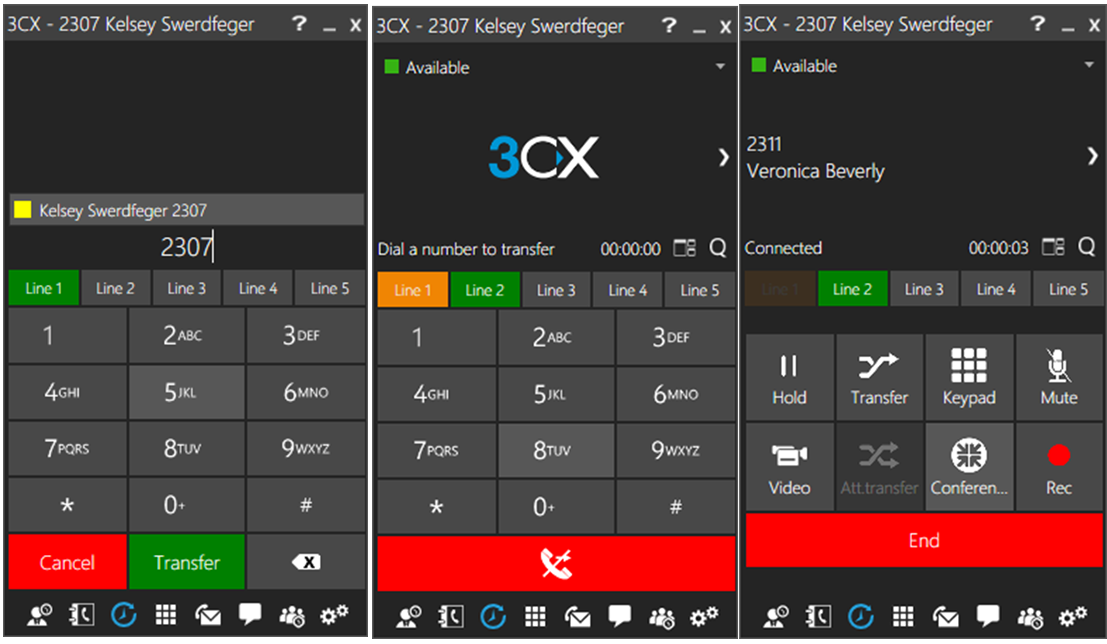
- To cold transfer a call, hit the “Transfer” button, then enter the extension you wish to cold transfer to. Hit “Transfer” again or “Enter” on your keyboard to complete the transfer. If you wish to go back to the original call, click the red phone at the bottom if you have not begun entering an extension, or hit “Cancel”.

- To cold transfer a call, hit the “Transfer” button, then enter the extension you wish to cold transfer to. Hit “Transfer” again or “Enter” on your keyboard to complete the transfer. If you wish to go back to the original call, click the red phone at the bottom if you have not begun entering an extension, or hit “Cancel”.
- To WARM TRANSFER:
- To warm transfer a call, click the “Attn Transfer” (attended transfer) button on your soft phone. This will bring up a second phone line which will be used for you to speak to the person to which you intend to transfer the call. You can then enter the extension or outside phone number you are trying to reach, or you can click on the red phone to return to the original incoming call you picked up.
- Once you have connected with the person you are trying to reach and have announced the call, click “Transfer” to connect the original incoming call with the intended destination, or click “End” to return to the original incoming call.
VIEWING YOUR CALL HISTORY
Sometimes it is necessary to view your call history, especially if a call has dropped and you need to get in touch again. Thankfully, you can view your call history on your soft phone by clicking the clock-like icon at the bottom. From there, you can select the kinds of calls you would like to see.

***INSTRUCTIONS FOR SETTING UP YOUR VIEW OF CC PHONE REP STATUS ON YOUR SOFT PHONE:
- First, click on the square/rectangle icon named “Switchboard”

- A new window should open. Make sure your “View” is set to Manager. You can change it using the drop down menu on the upper left. Then click on the little gears icon.

- This will open another window “Switchboard Settings”. On the left hand column, deselect all of the squares except CC Phone Reps. You will have to scroll down to deselect them all.

- Click “OK”
Now you will have just the CC Phone reps on the left-hand side and be able to see their status. On the right-hand side, you can see how many calls are in the queue. Calls will show up at the top portion of the screen.

CONFERENCE CALLING
- To conference call, while you are on a call with someone press the CONFERENCE button
- Click the ADD button (either a plus icon or a pen icon)
- Select PHONE NUMBER and type in the number
- Click DONE or START CONFERENCE (the number will be dialed and all 3 of you will be on 1 call.


3CX WEB MEETINGS (FOR TRAINING)
Occasionally trainings will need to be done over the phone, between offices. Some of these trainings will require the need of video presentations to help facilitate the trainings by allowing everyone to look at the same thing at the same time. We can achieve this by using the 3CX Web Meetings feature.
For presenters, a detailed breakdown of all features can be found at: https://www.3cx.com/user-manual/webmeeting/
For viewers, a detailed breakdown of how to join a meeting can be found at: https://www.3cx.com/user-manual/webmeeting/joining-a-webconference/
Currently, Baltic Ave is the best room to run a web meeting.
- Log into to the PC in Baltic with the CC Training. The current password is “trainingcc”.
- Log into your email at mail.actionlife.com and retrieve the link sent to you by the presenter.
- Open the link in Chrome
- Add your name and join the meeting