- Paying Special Assessments
- Paying Normal Monthly Assessments
- Check Research – “Missing Checks”
- Stop Payment on Assessment Checks
- Bank Billpay/Auto-Withdrawal through Owner’s Bank
- Credit Card Payments Thru Resident Portal/Payabli
- Recurring Resident Portal/Payabli Credit Card Payments
- Miscellaneous Payment Information
- Check Posting in SnapHOA Management App
- Refunding Overpayments
- Requests To Transfer Funds From One Account To Another
PAYING SPECIAL ASSESSMENTS
Due to unforeseen circumstances, an association may have to occasionally charge a “Special Assessment” to cover unexpected expenses. This special assessment is in addition to the normal monthly assessment. Special Assessment payments vary by Association. Some associations will ask for monthly payments while others require a lump sum, and some provide multiple options for payment. If there is any question regarding any specific terms of the special assessment, refer to SnapHOA Management App > Association Dashboard > Community Care > Accounting Notices to see the letter that went to the homeowners which should explain all of the basics. If homeowners want more information than what is included in the letter, they should be transferred to the Community Manager to address.
If the h/o is paying by check, the special assessment payments should always be made payable to the association (not Action Property Management), and they should include the h/o’s account number and “Special Assessment” on the memo line of the check. Special Assessment payments will be taken out though Recurring Monthly Payment (Auto-Pay) if they have it set up through Payabli/Resident Portal.
With Special Assessments, owners are giving the option to either pay a lump sum or pay the special assessment in monthly payments. They usually get a notice with a deadline of when they need to submit their decision on how they are going to want to pay. Sometimes, owners will change their mind after the deadline and want to pay in full instead of paying the monthly payments. When they change their mind like this, accounting needs to charge the account for the full amount. We used to have owners email the manager, however, Community Care should just open a ticket to Cash Posting (with the owner as the contact) requesting the owner would like to have the account charged in full for the special assessment. Same goes for the opposite, if they rather now pay monthly. There is no need to go through the manager for this anymore.
PAYING NORMAL MONTHLY ASSESSMENTS
- All payments should be payable to the association and the account number should accompany the payment.
- Homeowners may make their payments in the following manner:
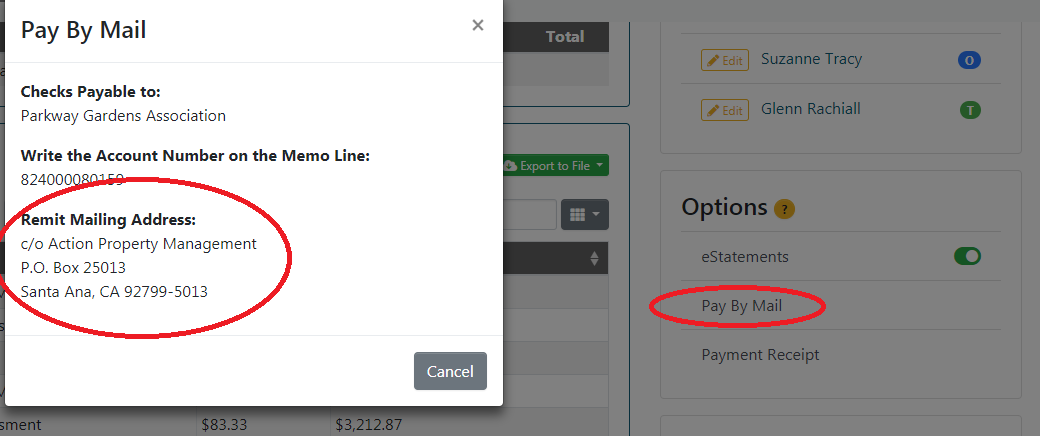
- Check or money order mailed to the appropriate bank lockbox (P.O. Box)(to find the appropriate address that should be given, look under the individuals address > Accounting > Information, then look to the right hand side under “Options” and click “Pay By Mail”.
- Check or money order hand carried into one of our Action offices or (for associations with on site management) to on-site staff (check profile to see if on-site accepts payments – NO CASH OR CREDIT CARDS ACCEPTED)
- Bank’s billpay/auto-pay (if owner’s bank or credit union offers that service).
- Online through Resident Portal (one time payment or recurring payments)
- Check or money order mailed to the appropriate bank lockbox (P.O. Box)(to find the appropriate address that should be given, look under the individuals address > Accounting > Information, then look to the right hand side under “Options” and click “Pay By Mail”.
CHECK RESEARCH – “MISSING CHECKS”
Homeowners often ask why a payment they sent has not posted to their account (or did not post for a long time). There are many situations that can delay posting.
- ASK IF THE CHECK HAS BEEN CASHED – if it has been cashed, ask them to email a front and back copy of the check (see below for more details).
- Verify that they mailed it to the correct mailing address.
- Verify that they used the correct account number.
- Confirm that the check was made payable to the association (not Action).
- Look under notes in the SnapHOA Management app to see if a Return Item Letter was sent due to lack of signature, wrong payee, etc.
- Look in the notes section to see if the payment was received at an off-site location. ***See “Checks turned in at onsite locations” below***
- Look in the notes section to see if the payment was noted. ***See NOTE below***
- Advise that occasionally there are delays beyond our control if they are using the US Postal Service.
ALWAYS ASK IF THE CHECK HAS BEEN CASHED
If the check has not posted and the owner says the check was cashed, we need the homeowner to send a front and back copy of the check so that we can research the payment. If they are using their bank billpay and the transaction is paperless, they must send the transaction number. They should email it to CommunityCare@actionlife.com. Once received, an accounting support ticket needs to be opened and the front and back of the check attached to the ticket. (Also, make a note on the owner’s account regarding the issue and that you opened an Accounting Support Ticket.) The check number alone will not suffice – they must provide a front and back copy of the cashed check which will contain (among other things) a “batch” number that helps Cash Postings track down the payment. Cash Postings will follow up with the homeowner.
- In the Accounting Support Ticket, ensure you include the account number, address, homeowners name, any attachments, and what the issue is in the ticket. If you are asking cashposting to reach out to the homeowner, please ensure you include their contact information as well.
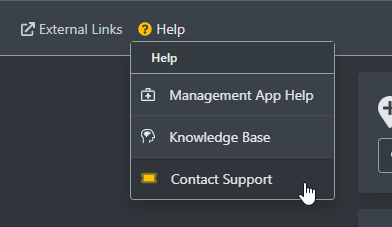
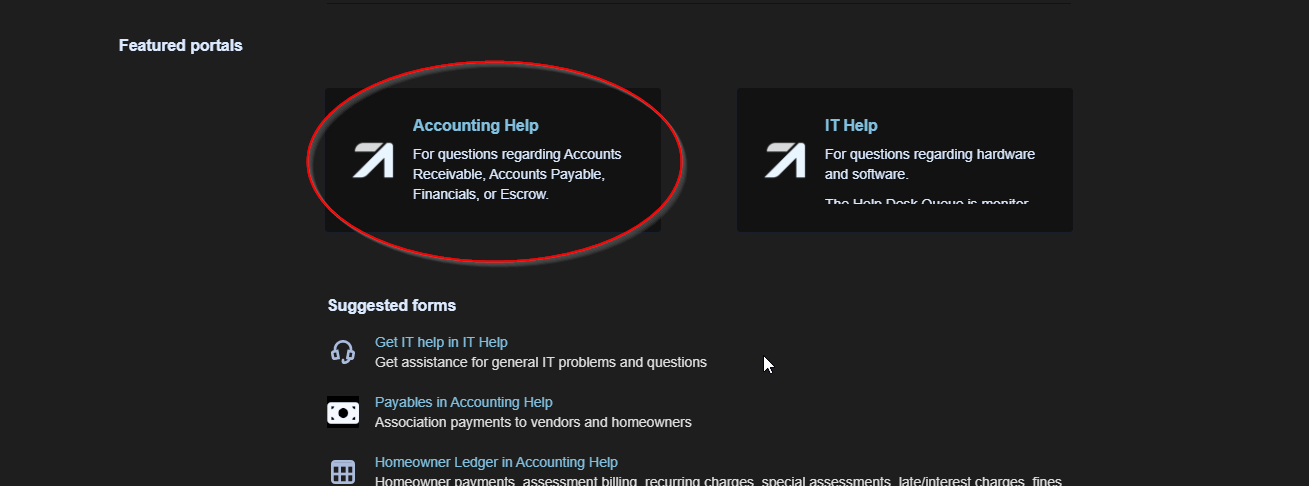
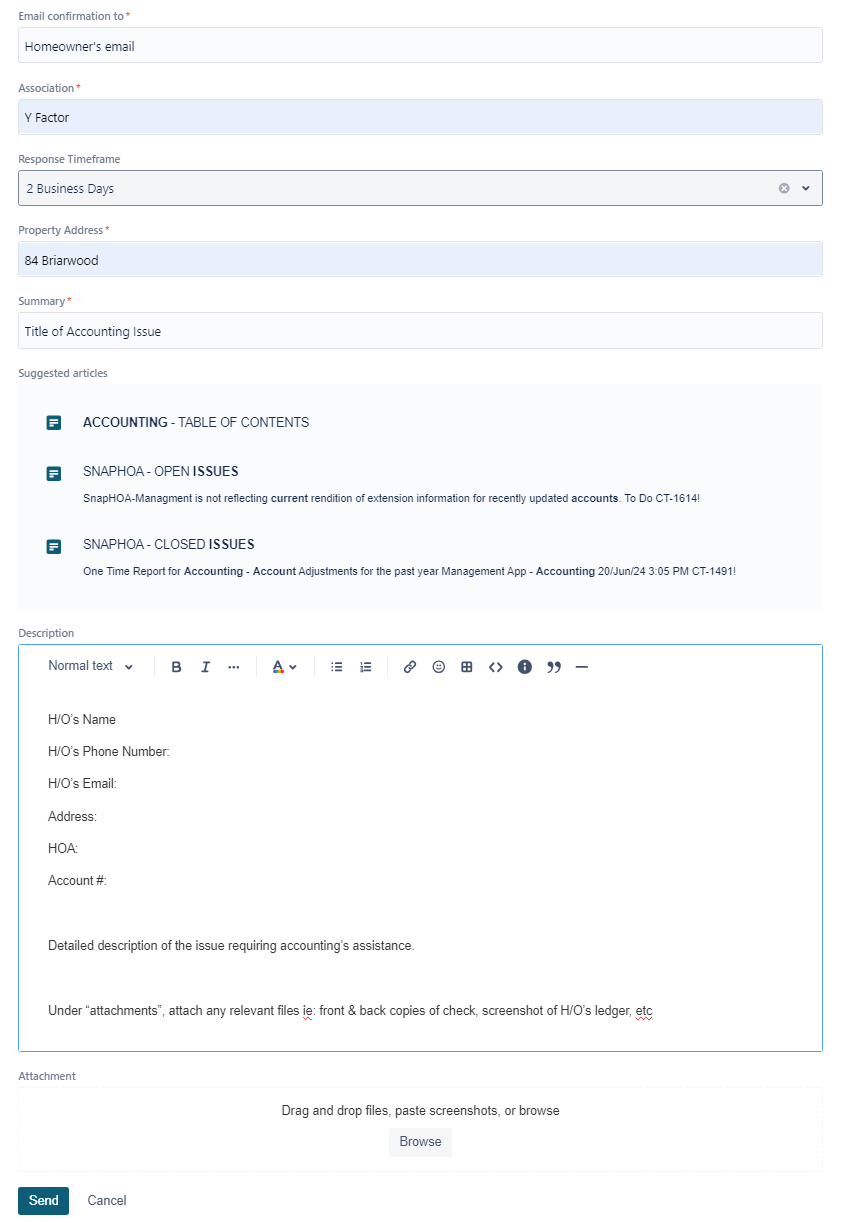
For the ’email”, if you are not already logged into your own JIRA account, please use the homeowner’s email address so any updates are sent to the homeowner. If you are logged into your own JIRA account, make sure that the homeowner’s email address is included in the body of the ticket.
NOTE: A front and back copy of the check is needed for any check that was cashed and not posted, including checks that were noted as received at an off-site location.
If the check has not posted and the owner says the check was not cashed, ask when the check was mailed. If it has not been 2 weeks, let the homeowner know we advise waiting at least two weeks as they payment may still be in transit. If it has been an appropriate amount of time, usually 2 weeks or longer, the check might have never arrived/become lost. (See Stop Payment Below) Regardless if they decide to do a stop payment with their bank or not, they should send a replacement check as it has most likely been lost in the mail.
NOTE: Homeowners using online billpay/auto-pay will often say that the check was “cashed” simply because their bank ledger shows that the money is no longer in the account. The bank ledger simply means that the bank has moved the money out of the homeowner’s bank account and is being held it in trust until the transaction has been completed. They must verify with their bank that the funds were indeed transferred and will need to provide documentation for the transaction.
STOP PAYMENT ON ASSESSMENT CHECKS
We cannot stop payment on checks!
- We do not recommend the homeowners stop payment on their checks as there will be a fee from their bank.
- If we receive a check, we will attempt to cash it, there is no stopping the attempt (just like every other company). If the homeowner does a stop payment through their bank, we will not be able to cash it and it will be returned to them for a fee. Again, this is how it works literally everywhere else that takes checks.
CREDIT CARD PAYMENTS THRU RESIDENT PORTAL –
- Credit Card payments made through Resident Portal are posted as “Credit Card”
Visa, Mastercard, Discover and American Express are accepted.
Payments will show immediately in the SnapHOA Management App under “Payment History” but will not post to the homeowner’s account ledger until 2-3 days later. For example, payments made before 2 pm will post on the ledger the next day. Payments after 2 pm will require an additional day to post to the ledger.
On the 15th and 30th of the month, homeowners will be allowed to make payments up until 11:59pm without being considered late. If they make a payment after 2 pm on the 15th or 30th, it still will not post on their ledger until the next day. However, accounting will review all of the website transactions on the 15th before allowing any late charges.
RECURRING RESIDENT PORTAL CREDIT CARD PAYMENTS – Homeowners are allowed to make credit card payments and recurring credit card payments. Check the dashboard on the SnapHOA Management app under Payabli Information to identify what convenience fees (if any) are applied for any given association. H/O’s can sign up on Resident Portal and may choose the withdrawal date (between the 1st and 15th of the month). There is no minimum amount that auto pay will pull but there is a max which can be checked on the Dashboard of SnapHOA Management App for that Association. *Auto Pay takes 1 business day to finish setting up so make sure the homeowner is made aware as if they set it up for the very next day, it may not go through.
MISCELLANEOUS PAYMENT INFORMATION
- We post payments based on the date that payment is received. All payments are posted by the lockbox service daily.
- We do not honor postmarked dated checks. Postdated checks will be returned to the H/O.
- We do not report to Credit Bureaus.
- Encourage H/O to pay on the Resident Portal, or walk in a payment when the grace period is close to expiring. Walk-in payments are accepted at the Irvine Office & all of our satellite offices (some satellite offices require an appointment to visit. If you are unsure someone will be available, please reach out to the MA for the association to verify). Additionally, some of our associations that have onsite management also accept walk-in payments (check with onsite management before directing a h/o to make a payment onsite).
CHECK POSTING IN MANAGMENT APP
- Personal checks and “physical” billpay checks mailed to the Post Office Box (hereafter referred to as the Lockbox) will post as “Check” followed by the check number (check numbers for personal checks are usually 4 digits or less in length.
- “Check #1234”
- Billpay checks have a longer series of numbers
- “Check # 98761234”
- Personal checks and “physical” billpay checks mailed to the the Irvine Office will post in the same manner at the checks mailed to the Lockbox.
- Checks mailed to the Irvine Office will not be processed on the date received, they will be forwarded to the lockbox. If the check was walked in, the check will be posted under “recent checks” by the team member who accepted the check.
- Billpay checks from the homeowner’s bank may also come in the form of a “Paperless Bank to Bank Transaction.” These transactions will be posted as “BNKPAY”. Sunwest Bank can only accept Paperless Transactions if they have a contract with the homeowner’s bank or credit union. US Bank does not contract with any institutions to receive Paperless Transactions. Therefore, all checks sent to US Bank will be physical checks.
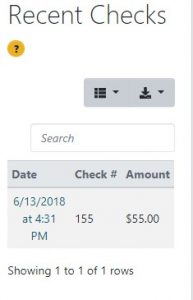
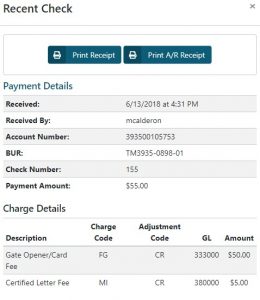
- Checks turned in at onsite locations are stamped with the date received onsite and the payment is noted in “recent checks”. A receipt is given to the homeowner and an AR Payment receipt is sent in with the check to the lockbox for posting.
- If a check is dropped off at an onsite office, it still needs to be mailed to our corporate office in Irvine. The onsite office will wait to collect multiple checks before sending them. Because of this process, it can take a couple of weeks for a check to be cashed. What about late fee’s? Well, If the check is received and noted in recent checks by the onsite office before the end of the grace period there will be no late fee. But, remember, just because it was received and entered into “Recent Checks” does not mean it was cashed yet.
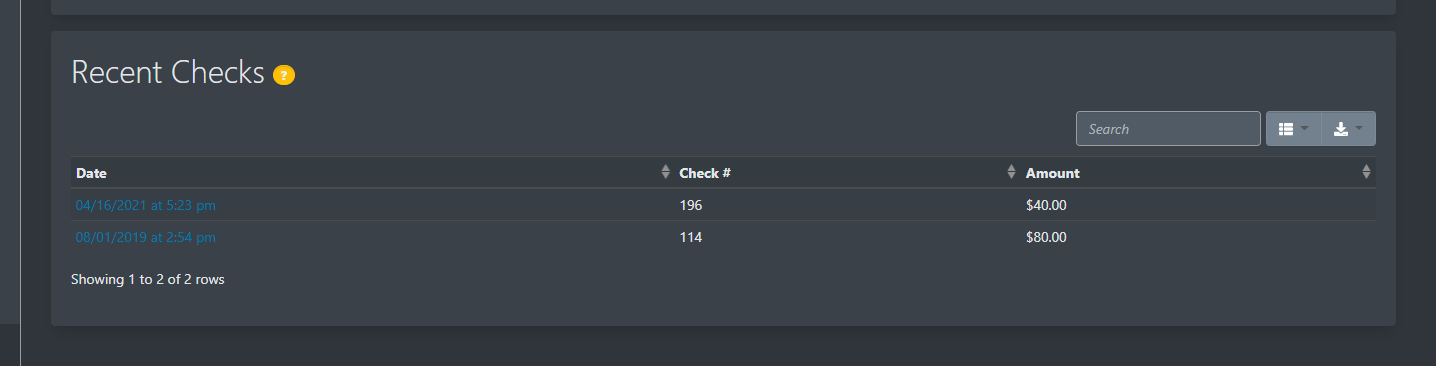
HOW IT LOOKS IN THE OLD SYSTEM: (HISTORICAL DATA)
- We make every attempt to post all payments received before the 15th so that homeowners do not receive an erroneous late charge. If a homeowner has a payment that posted between the 16th and the 18th of the month, and they claim that they (or their bank) sent in a payment allowing plenty of time for delivery, please open an accounting ticket and request that they verify the date received.
REFUNDING OVERPAYMENTS
- If a current homeowner accidentally overpays their assessment and they are requesting a refund check they must email communitycare@actionlife.com . The Community Care Lead and/or Manager will submit the request to accounting for processing. The refund process can take up to 2-3 weeks.
- NOTE: This does not apply to funds overpaid through ACH when a homeowner sells the property and fails to cancel ACH. See SOP 500 (Section entitled “Refunds After the Close of Escrow”) for instructions regarding these ACH “overpayments” and how they can be refunded.
REQUESTS TO TRANSFER FUNDS FROM ONE ACCOUNT TO ANOTHER
-
Often times when owners have multiple accounts, they will report that a payment was applied to the wrong account, and it needs to be moved over along with having any late fees waived. We need to advise them that their request to move funds from one account to another (whether it was our mistake or their mistake) MUST be made in writing to communitycare@actionlife.com. They need to specify the accounts, the check/transaction# and the amount. Once we receive their request, Community Care is open a ticket to Cash Posting (with the owner as the contact) with the written requests attached. Cash Posting will then sort all that out, including any fees that were assessed because of this.