Occasionally, vendors will reach out to inquire if we have received their invoice, what the status of their payment is, to report a lost check and/or to request a reissue of a check, or to report that they received a check from us and they are not sure what it is for.
The Community Manager, Community Care, and Accounts Payable can assist with certain request. Please reference the information below to see who can assist with the inquiry you have.
- Where do vendors submit invoices.
- Invoices Dashboard in SnapHOA Management App
- How to search for an Invoice
- How to understand the invoice notes and status
- If the invoice you are looking for is not in the system
- Vendors requesting a check reissue
- Vendor picking up a check in person
- Vendor says they received a check and don’t know what it’s for
- How to submit an Accounts Payable ticket (not for status)
- Vendor W-9’s
- Vendors needing to update their name or address
- New Vendor Inquiries (vendors who want to work for our Associations
- Corporate Accounts Payable (vendors who provide goods and/or services to Action, or Action employees seeking reimbursement)
Where do Vendors Submit Invoices
All vendors (in ALL regions) must submit their invoices to vendorinvoices@actionlife.com. They may copy the manager or workorderupdates@actionlife.com if we sent them a work order, HOWEVER it MUST be done in the SAME email and NEVER sent separately to different people as it can cause duplicate submittals which will cause delays. Vendorinvoices@actionlife.com must always receive the invoice for processing.
If the vendor would like to confirm receipt of an email they sent with an invoice, let the vendor know that they should have received an auto reply email confirming it has been received (they should check their spam just in case). If they state they did not receive a confirmation email, confirm they sent the invoice to the correct email for vendor invoices and if they did, inform them they need to email the Community Manager who can check and confirm receipt. DO NOT submit an accounting ticket or have them email vendorinvoices@actionlife.com again. They must reach out to the manager.
Below is the auto reply email the vendor will get when they email vendorinvoices@actionlife.com so they are aware of the processing time, which is 2-3 weeks, and are aware of other specifics they need to know:
- Attach each invoice as a separate/unique PDF.
- If multiple invoices were sent as one large PDF, it cannot be uploaded and payment will not be issued.
- If the invoice requires a log-in or downloading from a link in the body of the e-mail, payment will not be issued.
- Do not send additional copies of the same invoice to the Manager, Community Care, and/or mail a physical copy to Action Property Management.
- This will result in multiple submittals of the same invoice, potentially resulting in a significant payment delay.
How to Search for an Invoice
The invoice Dashboard can be accessed in SnapHOA Management App by clicking on the balance scale towards the top left. Select InvoiceAI Search under Invoices (not InvoiceAI Queue):

This will bring you to the InvoiceAI Search Page:

This dashboard will save your previous search selection. Your first step when searching must ALWAYS be to Click the “Reset to Default” button in the menu on the upper left side of the page.
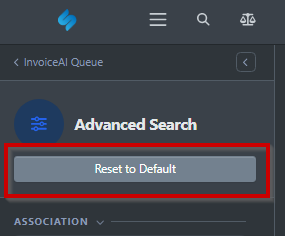
Your search criteria must be entered on the left menu under Advanced Search (not the top center results fields as that is used later to filter the results further one you make your search.)
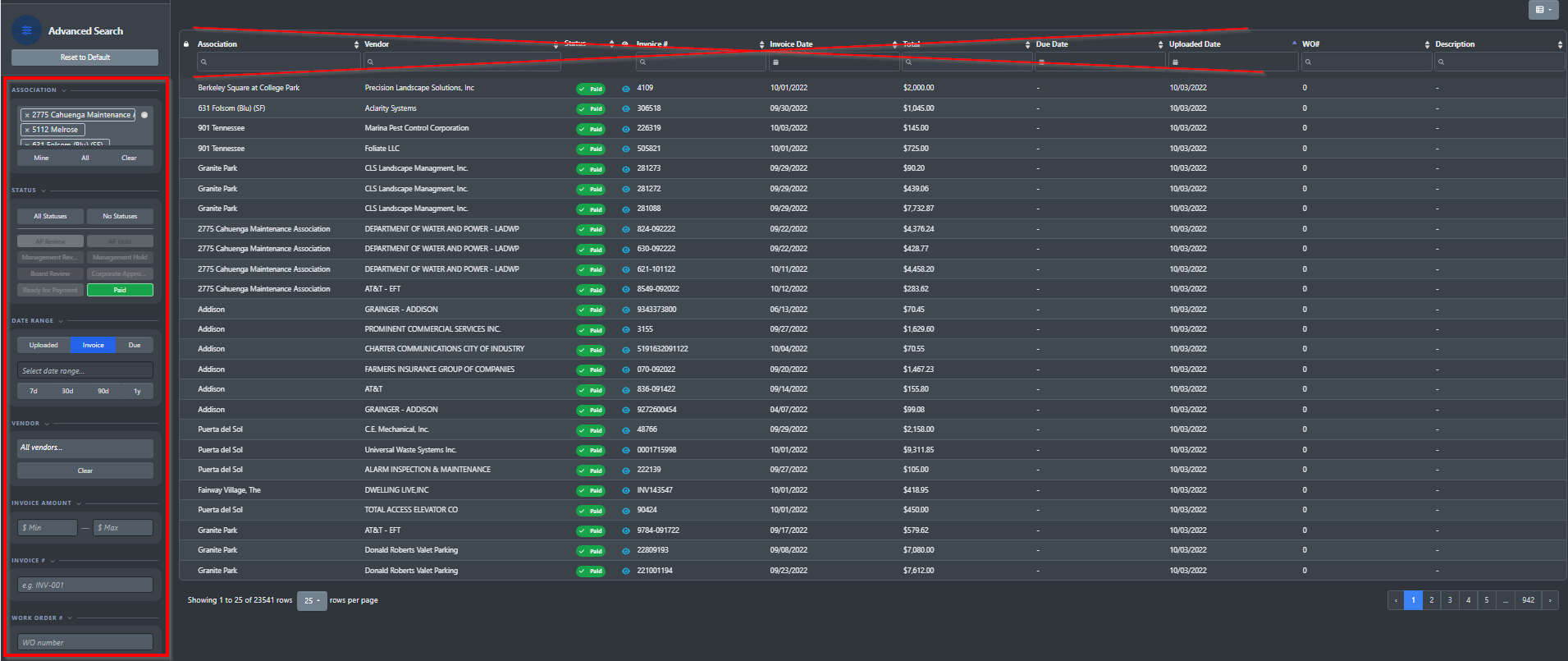
Association Search:
InvoiceAI Search does not require us to specify an association name. If a vendor doesn’t have it, we can still search using any field with the information they do have.
In this ASSOCIATION box, click on Clear (as all HOAs are selected by default), and then type in the HOA you want to search if you have this information.

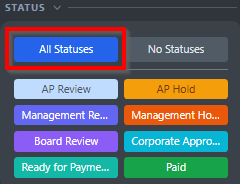
Status Search:
In the STATUS box, always click on “All Statuses”. It currently always defaults to “Paid” only, so make sure you remember to do this.
Date Range:
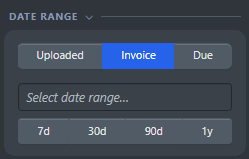
In the DATE RANGE box, you can select a specific date range for when the invoice was uploaded, the invoice date, or the due date. There are even some quick buttons that will set the date range to 7 days, 30 days, 90 days, and 1 year.
- We don’t want to get too specific with our search results so I would recommend not using this section or making sure your date range is broad enough.
Vendor:
In the VENDOR box you can search for the vendor’s name.
- Sometimes the vendor will not come up or will have multiple entries (based on location) so use this option ONLY if you are positive it is the correct entry. You can always use the filter boxes above the search results instead.

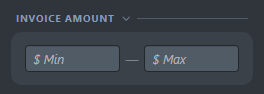
Invoice Amount:
In the INVOICE AMOUNT box you can select a dollar amount range
- Again, be careful with being too specific with your search if you are unsure of the exact dollar amount.
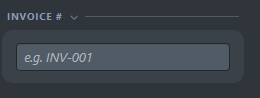
Invoice #:
In the INVOICE # box you will enter the invoice number provided.
- If nothing comes up, you can also leave this box blank and search using the filters above the search results instead, as sometimes invoice numbers are entered differently than how the vendor provides them.
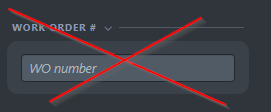
Work Order #:
DO NOT use this search field. It is too specific and many times invoices to do not reference this information.
Once you have filled out your search criteria on the left-hand side bar, the search results window will display the information:
- For example below, we have searched for Addison > All Statuses > AD Security, Inc.

You can now use the search fields in the bar across the top of the page to narrow your invoice down by vendor name, invoice number, invoice date, and total amount.
You can hover over the eyeball icon and it will show you a preview but won’t give you the specifics that you need so you will need to actually bring it up.
- The results will not automatically open in a new tab. To do this, you will need to hover over the eyeball icon, and then either click on “Open Details” with the scroller on your mouse or do ctrl+click to open it up in a new tab.

Once you have the invoice you are searching for open, you will see all the details on the left window. You can scroll or minimize the information trees on the bottom left menu for more information, specifically Activity to see the latest status and of course payment if it has already been processed.
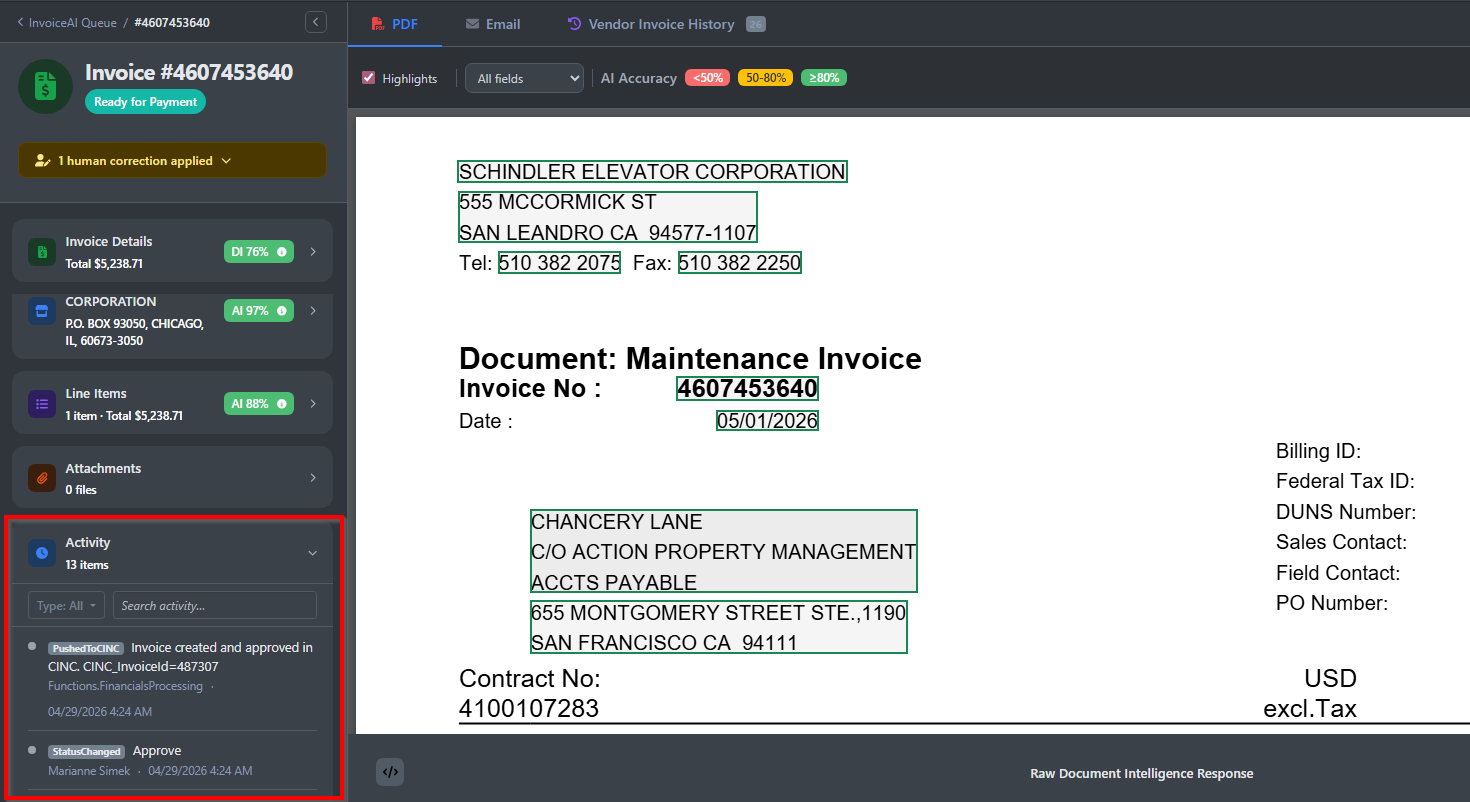

Once the invoice has been entered, it can take up to 3 weeks for it to be processed and have a check sent to the vendor. If it has been less than 3 weeks, please let them know to allow the full 3 weeks and, if they still have not received payment, to email the community manager (requests for status should never be sent to Accounts Payable directly).
If a check has been created/cut, you will see a check number in the notes section. You may provide the check number to the vendor. It is important to note that just because there is a check number listed, it does not mean that the check has been mailed. There are 2 different accounts that checks are pulled from and depending on which account the payment was pulled from, that will determine what the status of that check is.
- Bank Account type: RS (Reserve Account).
- When checks are cut from the Reserve Account, it means it needs board approval so the check needs to wait for two board member signatures on the check. Once that check is physically signed, that is when Action will be able to mail it to the vendor.
- If the vendor wants to know the status of a check, please refer them to the Community Manager (do not submit a ticket to Accounts Payable).
- Bank Account type: OP (Operations Account).
- When checks are cut from the Operations account, this means the check is typically mailed out the following business day of it being cut.
- If the vendor wants to know the status of a check, please refer them to the Community Manager (do not submit a ticket to Accounts Payable).
- If the invoice you are looking for is not in the system
If the vendor is inquiring about an unpaid invoice and you are not able to find it in the Invoice Dashboard, please confirm with the vendor that they emailed their invoice to vendorinvoices@actionlife.com. If they did not, please tell them that they must email their invoice to this specific email for processing, and it takes up to 3 weeks from when it is emailed to receive payment. If they did email the correct email and a reasonable amount of time (3+ weeks) has passed, they can email the Community Manager for status.
Do not submit an accounting ticket for any status requests.
- Vendors requesting a check reissue
If a vendor is requesting a check be reissued because they are saying the never received it or due to any other reason, have the vendor email the Community Manager directly to start the process with AP to reissue the check. Community Care does not open the accounting ticket directly.
- Vendor picking up a check in person
Occasionally, vendors will coordinate with managers to physically pick up a check in one of our offices. If a vendor contacts us to confirm that a check is ready for pick up, they would need to speak to the community manager to confirm they can go in to pick it up. This is not something Accounts Payable can confirm as this is an arrangement between the vendor and the community manager, so please do not submit a ticket for this.
- Vendor says they received a check and don’t know what it’s for
We have had vendors contact Action and say they received a check from us but have no idea what HOA it’s for and/or what it’s for, and request information. If they know what HOA it’s for, we direct them to the Community Manger of that HOA. If they have no idea what HOA it’s for, we would gather all the information (check #, amount, date of check, etc) and open an accounting ticket so they can research and get back to them. See section below on how to submit a ticket to Accounts Payable.
ANY ADDITIONAL QUESTIONS OR INQUIRIES NOT LISTED ABOVE SHOULD BE DIRECTED TO THE COMMUNITY MANAGER AND NOT ACCOUNTS PAYABLE (AP).
How to Submit an Accounts Payable Ticket (not for status or ANYTHING else other than searching what a payment was for when the vendor has no idea)
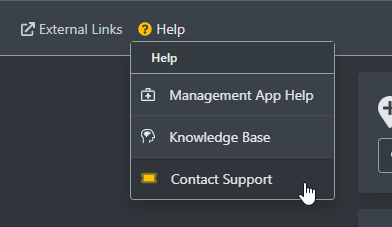
Click on the Help Icon towards the top left in SnapHOA Management App. Then select Contact Support.
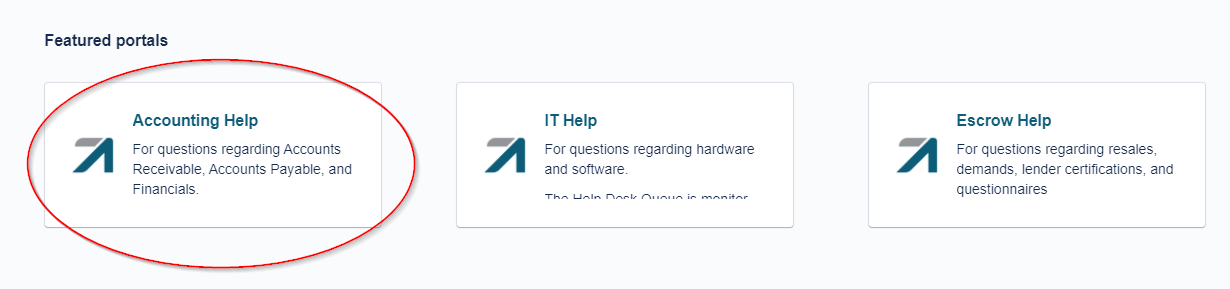
Click on Accounting Help.
You will see a list of Accounting options and for this topic, you would select “Payables”.

Once Payables is selected, fill out the required fields and be as detailed as possible. Make sure to always provide the vendor’s contact information so Accounts Payable can reach out to them directly. Attach any attachments you may have.

Vendor W-9’s
Vendor requesting W-9 from Action:
A W-9 is a legal document we must provide so that other entities can pay Action or pay one of our associations. When someone calls requesting a W-9 for Action Property or for an individual HOA, please have them email escrow@actionlife.com. This is not provided by the Accounts Payable or the Community Manager.
Action receiving W-9 from Vendor:
The W-9 is a document we need to legally pay any vendor. Action uses VIVE, a vendor compliance program, who collects W-9s and other information. If a vendor has questions about where to send their W-9 or if Community Care happens to receive one, please direct them to the community manager.
Vendors needing to update their name or address
Please refer to them to the Community Manager as there may be different places their information will need to be updated for payment purposes as well as on different profiles, should it be applicable.
New Vendor Inquiries (vendors who want to work for our Associations)
Vendors call us regularly asking if we need services at any of our associations. We’ve partnered with VIVE in order to standardize our vendor qualification process. All vendors who currently work with or would like to work with Action will be vetted by VIVE. Action Community Managers will only be selecting vendors who have registered and had their insurance documents vetted by VIVE.
- They should be directed to https://www.getvived.com/client/action. If they have any questions or require additional assistance, please have them call VIVE’s Customer Support at (844)476-8038. Hours are 9am-6pm EST. This information can also be accessed through the Knowledge Base for quick reference.
Corporate Accounts Payable (vendors who provide goods and/or services to Action, or Action employees seeking reimbursement)
When a caller states that they are requesting status on a payment from Action Property Management (not from a specific association), have them email corpaccountspayable@actionlife.com. Typically the callers will be vendors who provide goods and/or services to Action, or Action employees seeking reimbursement. If it is a call that needs to be escalated, you can warm transfer the call to Mayra Flores (AP/AR Associate). If Mayra Flores is not available, ask the caller to leave her a voicemail. If Mayra Flores will not be available soon (on vacation or extended leave), and/or it is an emergency situation, reach out to your CC lead and/or manager for direction.
Old Vendor Invoices:
Invoices Dashboard in SnapHOA Management App
- How to Search for an Invoice
The invoice Dashboard can be accessed in SnapHOA Management App by clicking on the balance scale towards the top left. Select the Dashboard under Invoices.
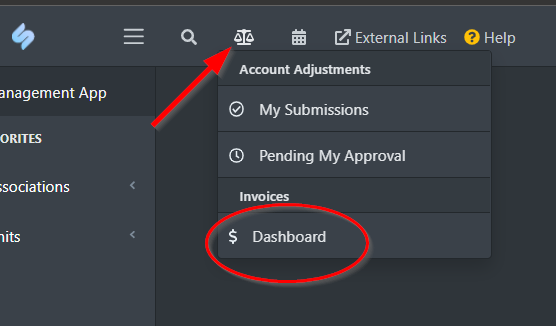
Once inside the Invoices Dashboard, click “Advanced Search”.

We must have the name of the Association the invoice is for in order for us to be able to search. Once you select the Association, you will also be able to then filter the search and include, the invoice #, Vendor name, and/or the check #. You may also adjust the date range.
If you only do a search by selecting the Association, you will see all the invoices that have been entered and coded for the Association. The different columns allow you to sort them to facilitate your search. Of course it is always better when you are able to enter the vendor name and other other info to filter out the invoices for other vendors.

Once you have found the invoice you are looking for, click on the “eye” icon under the View column to pull up the information. You can also see the status at a glance from this search results page under the Status Column.

You will then be able to see all the accounting notes regarding this invoice.

- How to understand the invoice notes and status
Once the invoice has been entered, it can take up to 3 weeks for it to be processed and have a check sent to the vendor. If it has been less than 3 weeks, please let them know to allow the full 3 weeks and, if they still have not received payment, to email the community manager (requests for status should never be sent to Accounts Payable directly).
If a check has been created/cut, you will see a check number in the notes section. You may provide the check number to the vendor. It is important to note that just because there is a check number listed, it does not mean that the check has been mailed. There are 2 different accounts that checks are pulled from and depending on which account the payment was pulled from, that will determine what the status of that check is.
- Bank Account type: RS (Reserve Account).
- When checks are cut from the Reserve Account, it means it needs board approval so the check needs to wait for two board member signatures on the check. Once that check is physically signed, that is when Action will be able to mail it to the vendor.
- If the vendor wants to know the status of a check, please refer them to the Community Manager (do not submit a ticket to Accounts Payable).
- Bank Account type: OP (Operations Account).
- When checks are cut from the Operations account, this means the check is typically mailed out the following business day of it being cut.
- If the vendor wants to know the status of a check, please refer them to the Community Manager (do not submit a ticket to Accounts Payable).
