- Overview
- Opening EIO/ Signing in as another Rep
- Closing the EIO Board
- Opening the EIO Board after it has been Closed
- To Change Your Status
- To Change Another Team Member’s Status
- Future Status
- To View the Status of any Employee
- Chatting
- Group Chat
- EIO Cheat Sheet
OVERVIEW
EIO stands for Electronic In/Out. It is the program used to determine availability of corporate and satellite staff members at any given time. The EIO Board is a great tool that allows quick and efficient communication.
How to Access EIO?
To access EIO, first login to your SnapHOA account at mgmt.snaphoa.com. Once logged in, click the EIO icon located in the top left menu.

PLEASE NOTE: All staff shall update EIO for break/lunch periods, meetings, vacation/sick time off, or other periods of time they are unavailable.
How do I use EIO?
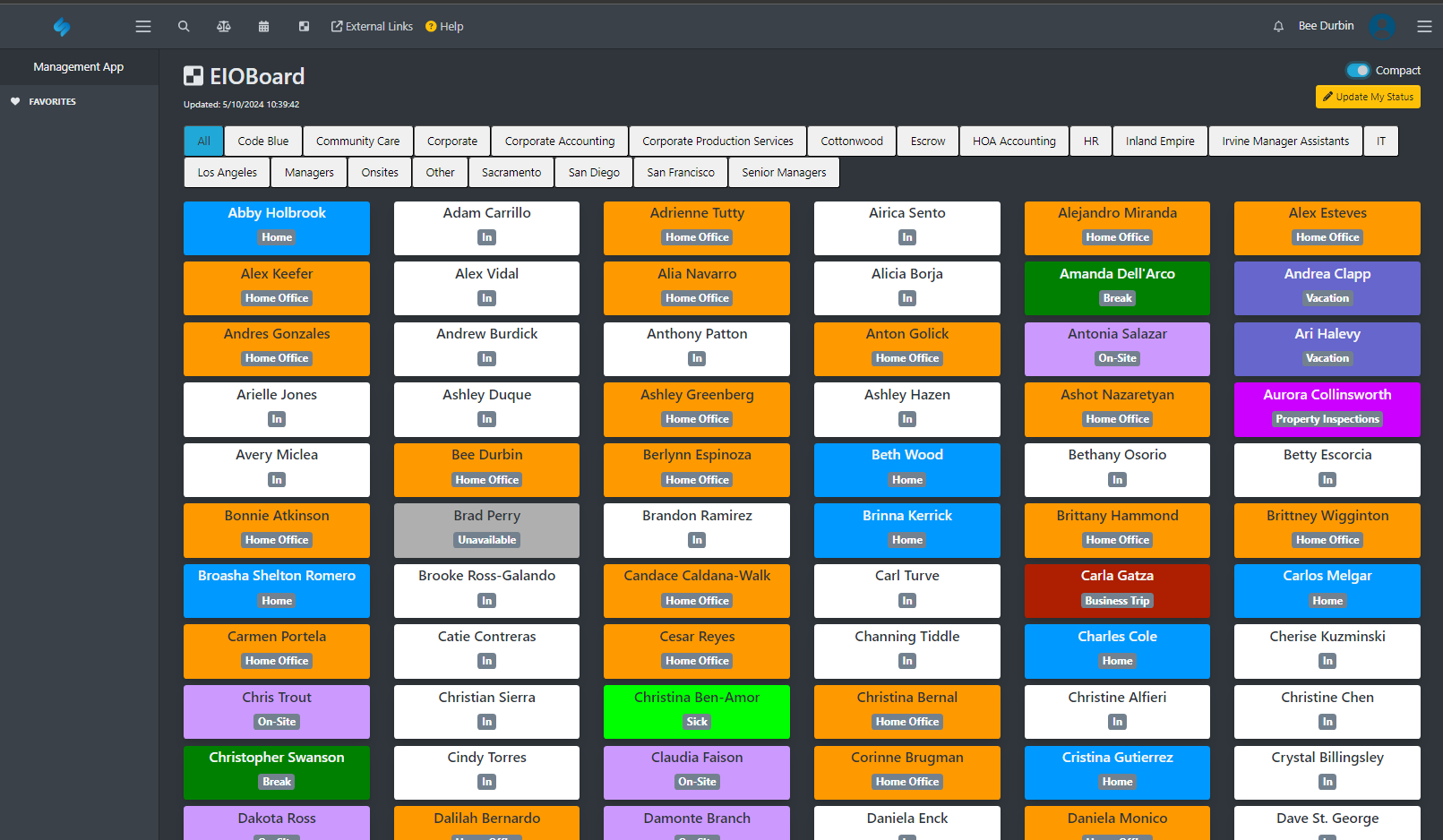
Once EIO loads, you will see a screen similar to what is shown below. There are several key items to highlight.

- This is where you will go to update your EIO status.
- This section will show you a condensed view of specific departments so it is easier to find the team member you are searching for.
- This is an example of all team member statuses. Here you can see what status they are in as well as other important information.
- This will tell you what the team members current status is (which will always match the color)
- This will show you the last time the status was updated.
- Some team members have static comments that are always present.
- This is where you can toggle a compact view so you can view more team members with less information.
How do I update my EIO status?
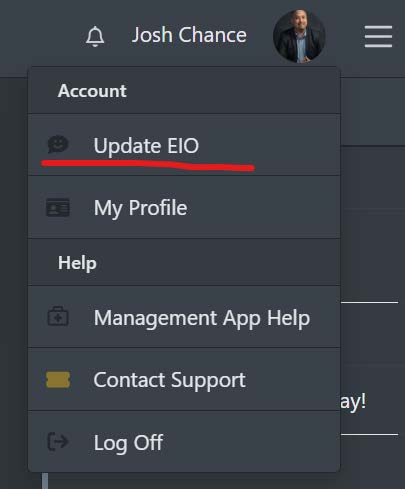
There are several ways you can update your EIO status. The fastest way is to click your name in the top right corner of SnapHOA and then choose “Update EIO”.
You can also go to “My Profile”. Once in your profile, you can click the pencil in the EIO section on the right side of your profile.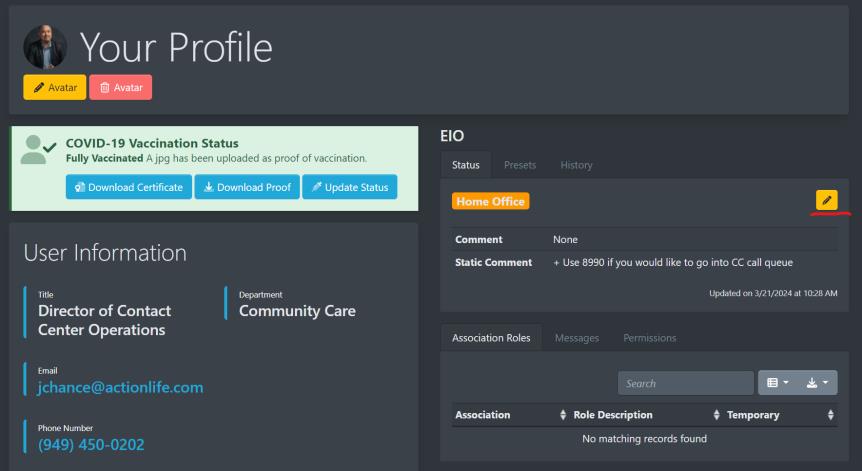
Either of these options will take you to the below area where you can update your status.
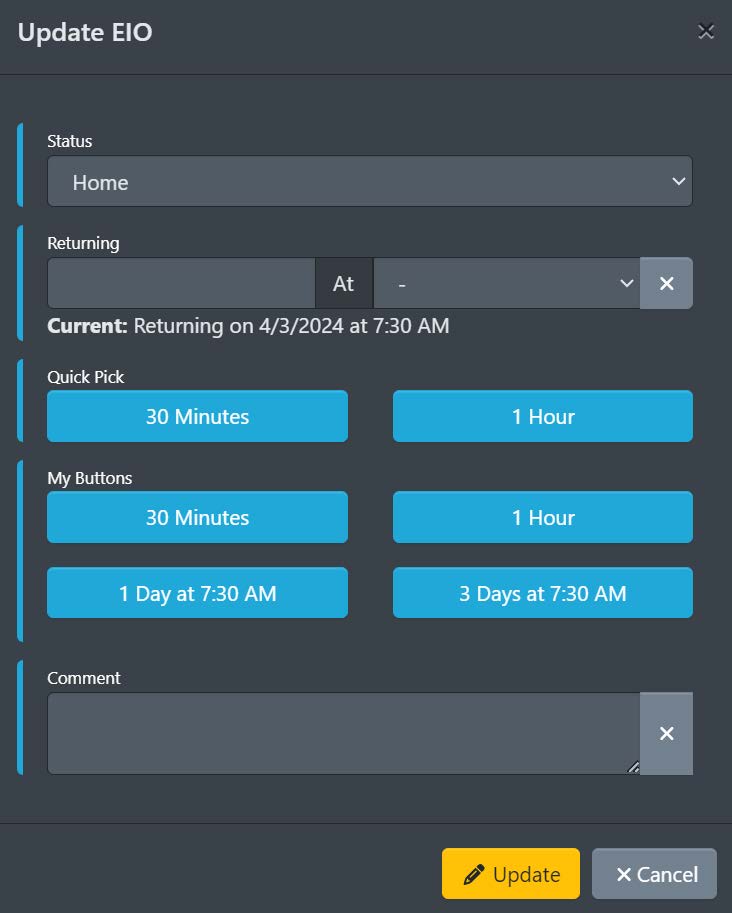
There are several options you can choose from here:
- Change your status
- Set your returning date and time manually
- Use the quick pick, which allows you to choose 30 minutes or 1 hour from now.
- You may have My Buttons which are custom options.
- You can add comments that will be visible to everyone at Action.
- Once you have modified your status, click the yellow update button to publish your change.
TO CHANGE ANOTHER TEAM MEMBER’S STATUS
If you are asked to update someone else’s EIO status, click on their name. This will bring you to their Team Member Profile.
Using the yellow Edit button, select the proper status, select the return time, and add any comments if necessary.
EIO CHEAT SHEET
The EIO Cheat Sheet explains how calls should be handled in relationship to the selected status. Click here to get a copy of the EIO CHEAT SHEET on one page for reference or see below.
